
Search the Community
Showing results for tags 'UI'.
-
Version 1.0
9 downloads
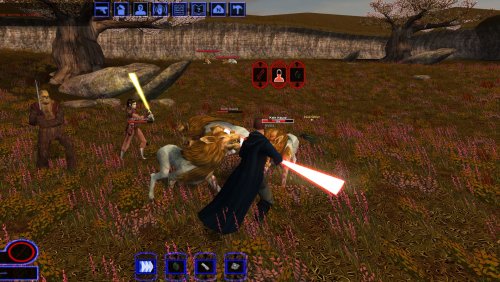
World of Warcraft-style nameplates for KOTOR: every enemy gets its own health bar, and loot and usable objects are always labelled. KOTOR shows one overhead name and health bar at a time, only for the creature under your cursor or your target. It flickers away and is hard to click. This mod gives every hostile you could click its own plate: Red plates on every visible enemy within 60 m; neutral and friendly creatures on hover or target. A framed, larger target plate with health in percent. Other plates fade while you have a target. Damage chips, distance scaling and stacking instead of overlap. Click a plate to select or attack, just like clicking the model. Object labels: remains, containers and items on the ground in gold while they hold loot, "[empty]" once looted, terminals and workbenches in cyan. Scenery and invisible script objects get no label. Only while the HUD is up (never in dialogs, menus or cutscenes). F6 turns it off and on. Everything is configurable in nameplates.ini. Install: copy dinput8.dll and nameplates.ini into the game folder (next to swkotor.exe). Delete them to uninstall. It doesn't touch swkotor.exe, Override or saves: everything happens in memory while the game runs, and it checks the game code before every hook, so on an exe it doesn't recognise it does nothing. Compatibility: KOTOR 1 patch 1.03 on Windows. Tested on Steam, with the KOTOR Editable Executable and on the stock exe. GOG should work but is untested, so please report either way. Any resolution, with or without UniWS, High Resolution Menus and the 4 GB patch. Works with ReShade. Conflicts only with other mods that ship a dinput8.dll. Not for KOTOR 2. Troubleshooting: nameplates.log in the game folder says whether the hooks installed. For bug reports, set Debug=1 in nameplates.ini, reproduce the problem and include the log and a screenshot. Engine addresses come from Lane Dibello's KOTOR Patch Manager address database. Thanks, Lane! Source (MIT): https://github.com/phalladar/k1-nameplates -
View File K1 Nameplates World of Warcraft-style nameplates for KOTOR: every enemy gets its own health bar, and loot and usable objects are always labelled. KOTOR shows one overhead name and health bar at a time, only for the creature under your cursor or your target. It flickers away and is hard to click. This mod gives every hostile you could click its own plate: Red plates on every visible enemy within 60 m; neutral and friendly creatures on hover or target. A framed, larger target plate with health in percent. Other plates fade while you have a target. Damage chips, distance scaling and stacking instead of overlap. Click a plate to select or attack, just like clicking the model. Object labels: remains, containers and items on the ground in gold while they hold loot, "[empty]" once looted, terminals and workbenches in cyan. Scenery and invisible script objects get no label. Only while the HUD is up (never in dialogs, menus or cutscenes). F6 turns it off and on. Everything is configurable in nameplates.ini. Install: copy dinput8.dll and nameplates.ini into the game folder (next to swkotor.exe). Delete them to uninstall. It doesn't touch swkotor.exe, Override or saves: everything happens in memory while the game runs, and it checks the game code before every hook, so on an exe it doesn't recognise it does nothing. Compatibility: KOTOR 1 patch 1.03 on Windows. Tested on Steam, with the KOTOR Editable Executable and on the stock exe. GOG should work but is untested, so please report either way. Any resolution, with or without UniWS, High Resolution Menus and the 4 GB patch. Works with ReShade. Conflicts only with other mods that ship a dinput8.dll. Not for KOTOR 2. Troubleshooting: nameplates.log in the game folder says whether the hooks installed. For bug reports, set Debug=1 in nameplates.ini, reproduce the problem and include the log and a screenshot. Engine addresses come from Lane Dibello's KOTOR Patch Manager address database. Thanks, Lane! Source (MIT): https://github.com/phalladar/k1-nameplates Submitter Phall Submitted 10/27/2026 Category Mods K1R Compatible No
-

Version 1.5
288,754 downloads
Bubbling up from the font of dark knowledge, ndix UR presents KotOR High Resolution Menus, a UI mod package providing full high resolution menu and UI support for Knights of the Old Republic. The tyrrany of 640x480 menus and 6-item lists is over. Normally, when you increase the game's resolution using a widescreen patcher like UniWS, the menus stay very small in the middle of the screen and the borders get larger. This package is designed to be used *after* the widescreen patcher has done its work. It scales the menu screens up so that they fill the screen. This package requires modification of the swkotor.exe file using a supplied patcher, and is only known to work with GoG, 4-CD, and macOS (x86) versions of the game. It should be compatible with any Steam version that uses UniWS. The main content of the package are sets of GUI files (.gui), scaled for specific resolutions. The package contains GUI files for over 30 common resolutions with the following aspect ratios: 4:3, 16:10, 16:9, 21:9, and 32:9. Here is a list of the currently supported resolutions: Installation Find the gui.WxH folder matching your resolution, modify your executable using the supplied patcher, copy the GUI files to your Override/ folder. The details for this process can be found in the package README.pdf file. Read it. Follow the instructions therein. The documentation includes everything you need to know to manually patch your EXE if the patcher does not work for your version. Uninstallation Remove the GUI files, restore the original backed up version of your swkotor.exe file. IMPORTANT NOTES: This is not a resolution hack or widescreen patch, such as you get from using UniWS. You should already be successfully running the game at the resolution you are trying to get menus and UI for. Nothing in this package will give you any additional resolutions available. That is not what this does. If you are trying to get high-res menus for one of the resolutions supported by default (800x600, 1024x768, etc.) there is probably no point to using the GUI files named 'mipc*' provided by this package (mostly the in-game "HUD"), however, this scenario is untested. There are a few of the GUI files in this package you can use without modifying your executable. Here is that 'safe' list, in case you are unable to modify your executable: It gets you the main menu, some dialogs, and the in-game HUD elements. Thanks DarthParametric for testing, contributing a double-clickable thing for Windows users, and prompting me to finally figure out the needed EXE modifications. tk102 for GFF2XML and XML2GFF source code, which made it a lot easier to get this up and running. Known Issues The patcher is currently incredibly limited, making no effort to search for values, only looking at specific locations where they are in the executables I have access to. This package does not contain any higher resolution artwork. At high resolutions, menu backgrounds will be blocky, and the striped list backgrounds are unlikely to line up with list items. For numerous reasons, you will want to get a high resolution menu art package. The game's initial character selection screen does not lay out the selectable characters properly according to GUI file field values. It is useable, but not perfect. The blue hilight borders had to be removed from around the characters to maintain a clean look. The map screen is scaled up, but the map itself is not. Furthermore, the position of the map within the frame is somewhat random/poorly understood. The map, however, is completely useable, and the points of interest and player indicator are all positioned accurately relative to the map. Some of the 3D models in menus, such as on the character stats or character generation screens, display line artifacts over them. This is caused by the very low quality graphics being scaled up to provide the border overlays. Extracting the graphics as TGAs, scaling them up, and placing them into Override/ sometimes solves these problems. This package omits statussummary.gui and dialog.gui. Scaling them up cause problems. The files don't behave as expected, and it seems to not require a customized version in order for them to work as one would want. You might notice 1280x1080 in 21:9 even though it is not 21:9. It is for split-screen on 21:9 monitors. Rescaling the dialog/cut-scene letterbox (which is optional) seems to introduce occasional issues with letterbox placement, particularly when the letterbox animation happens. This may be fixed at some point in the future. There is no scaling on font size, and as far as I know no one has figured out how to do it, so users on TV/couch setups may not find the help they are looking for with this. Upgrading 1.4 to 1.5: If your resolution was not previously supported, copy new .gui files to your Override/ Upgrading 1.3 to 1.4: If you have Polish version, you can run EXE patching process If you have 32:9 display, copy new .gui files to your Override/ Upgrading 1.2 to 1.3: Copy all the .gui files to your Override/ Upgrading 1.1 to 1.2: Repeat the EXE patching process on a backup EXE if you want letterbox scaling Upgrading 1.0 to 1.1: Remove dialog.gui from your Override/ Copy 1.1 pazaakgame.gui to your Override/ -
Version 1.0.1
14 downloads
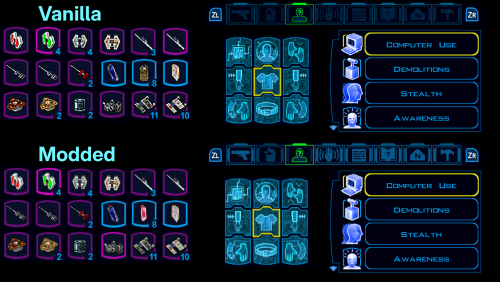
Replaces a bunch of item icons with their Kotor 2 version (full list below), as well as upscales some UI elements for the Nintendo Switch version of the game. This mod doesn't touch anything that ajdrenter's Pretty Good! Icons mod does. The screenshot above is just an example of some of the upscaled icons and elements. I think the Kotor 2 versions of the icons are a huge improvement. A lot of the UI changes are pretty minor, but I still prefer it over vanilla. I made a full guide for modding Kotor 1 on the Switch, based off of the neocities guide. Check it out here if you want. Installaion: Put the .tpc files in each of the 2 folders in atmosphere/contents/0100854015868000/romfs/override/Textures. Kotor 2 icon list: Stims: ii_Adrnaline_001 - 006 ii_CmbtShot_001 - 003 Credits: ii_credits_001 - 014 Datapads: ii_datapad_001-015 Repair kits: ii_DrdRepEqp_001 - 003 Idk what this is: ii_DrdSecSpk_001 Keys: ii_key_001 - 015 Medpacks: ii_MedEqpmnt_001 - 005 Weapon upgrades & Miscellaneous: ip_pltuseitm_001 - 010 ip_pltuseitm_012 - 024 ip_pltuseitm_026 - 068 Spikes and parts: ii_ProgSpike_001 - 002 ii_SecSpike_001 - 002 Lightsaber crystals: iw_SbrCrstl_001 - 021 Mines: ii_TrapKit_001 - 004 Armor upgrades: ii_upgrade_228 renamed ip_pltuseitm_069 ii_upgrade_247 renamed ip_pltuseitm_070 -
Version 1.0.1
386 downloads
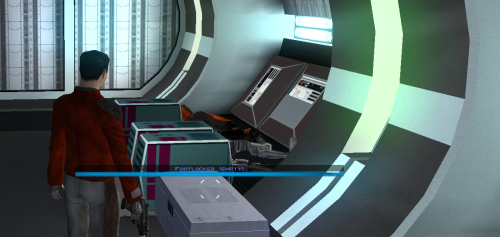
Description Appends " (empty)" to the floating hover name of any container or lootable corpse that currently holds nothing. Now you can tell an empty footlocker from a full one at a glance without stopping to open it. Shows the moment you first see an initially-empty container. Updates live the instant you loot one empty, while you're still hovering over it. Covers lootable corpses too (KOTOR stores them as "Remains" containers) Installation instructions 1. Copy these three files into your KOTOR folder, next to `swkotor.exe` (typically `C:\Program Files (x86)\Steam\steamapps\common\swkotor\`): - MarkEmptyContainers.exe - Apply Container Patch.bat - Revert Container Patch.bat 2. Double-click `Apply Container Patch.bat`. It prints `SUCCESS` and makes a backup. Launch the game and enjoy. Uninstallation instructions 1. Double-click `Revert Container Patch.bat`. This restores `swkotor.exe` exactly as it was (from the backup it made: `swkotor.exe.MarkEmpty.bak`). Requirements Requires the KOTOR Editable Executable mod to allow the patcher to work. https://deadlystream.com/files/file/1320-kotor-editable-executable/ -
View File Kotor 1 UI and Icon Upscale for Nintendo Switch In the image above, the 9 equip slots are in the wrong spot, so the top one is the modded version, and the bottom is the original. Replaces a bunch of item icons with their Kotor 2 version (full list below), as well as upscales some UI elements for the Nintendo Switch version of the game. This mod doesn't touch anything that ajdrenter's Pretty Good! Icons mod does. The screenshot above is just an example of some of the upscaled icons and elements. I think the Kotor 2 versions of the icons are a huge improvement. A lot of the UI changes are pretty minor, but I still prefer it over vanilla. I made a full guide for modding Kotor 1 on the Switch, based off of the neocities guide. Check it out here if you want. Installaion: Put the .tpc files in each of the 2 folders in atmosphere/contents/0100854015868000/romfs/override/Textures. Kotor 2 icon list: Stims: ii_Adrnaline_001 - 006 ii_CmbtShot_001 - 003 Credits: ii_credits_001 - 014 Datapads: ii_datapad_001-015 Repair kits: ii_DrdRepEqp_001 - 003 Idk what this is: ii_DrdSecSpk_001 Keys: ii_key_001 - 015 Medpacks: ii_MedEqpmnt_001 - 005 Weapon upgrades & Miscellaneous: ip_pltuseitm_001 - 010 ip_pltuseitm_012 - 024 ip_pltuseitm_026 - 068 Spikes and parts: ii_ProgSpike_001 - 002 ii_SecSpike_001 - 002 Lightsaber crystals: iw_SbrCrstl_001 - 021 Mines: ii_TrapKit_001 - 004 Armor upgrades: ii_upgrade_228 renamed ip_pltuseitm_069 ii_upgrade_247 renamed ip_pltuseitm_070 Submitter VeSeeker Submitted 08/24/2026 Category Mods K1R Compatible Yes
-
Version 3.0
507 downloads
BIGGER DIALOG FONT ━━━━━━━━━━━━━━━━━━━━━━━━━━━━━━━━━━━━ DESCRIPTION Bigger Dialog Font increases dialogue and menu description font size in KOTOR 2 for better readability on modern displays. The main download includes all available font sizes: 20% Bigger 25% Bigger 30% Bigger 40% Bigger 50% Bigger 60% Bigger 70% Bigger 80% Bigger Choose whichever size works best for your resolution and setup. The download also includes an optional Font Upscaled folder. Increasing the original font size can make the text appear low-resolution or blurry, so these upscaled font textures can be used to make the larger text look clearer. ━━━━━━━━━━━━━━━━━━━━━━━━━━━━━━━━━━━━ DIALOG SUBTITLE WORD WRAP BETA The optional Dialog Subtitle Word Wrap beta modifies dialog.tlk to add line breaks to dialogue subtitles, helping prevent subtitle text from extending off-screen when using the larger font sizes. The add-on is now modular and includes three versions: Vanilla TSLRCM TSLRCM + KOTOR 2 Community Patch Choose the version that matches your installation. The requirements only apply to the Dialog Subtitle Word Wrap version you choose. The regular Bigger Dialog Font files do not have any known mod requirements. Important: Always back up your original dialog.tlk before installing the Dialog Subtitle Word Wrap beta. ━━━━━━━━━━━━━━━━━━━━━━━━━━━━━━━━━━━━ INSTALLATION Main Font Files Download and extract the ZIP file. Open the extracted folder. Choose your preferred font size. Place the files from your chosen size folder into your KOTOR 2 override folder. Replace files if prompted. Optional Upscaled Font If you want clearer font textures, open the Font Upscaled folder and place its files into your override folder. This is optional, but recommended if the enlarged font looks blurry or low-resolution. Dialog Subtitle Word Wrap Beta Read the included README first. Choose the version that matches your setup: Vanilla TSLRCM TSLRCM + KOTOR 2 Community Patch Back up your original dialog.tlk. Place the new dialog.tlk into your main KOTOR 2 directory, where the game executable is located. ━━━━━━━━━━━━━━━━━━━━━━━━━━━━━━━━━━━━ EXTRA NOTES Screenshots were taken at 1920x1080. ━━━━━━━━━━━━━━━━━━━━━━━━━━━━━━━━━━━━ CHANGELOG Consolidated all font sizes into the main download. Added 20%, 25%, 30%, 40%, 50%, 60%, 70%, and 80% font size options. Added optional upscaled font textures for clearer enlarged text. Dialog Subtitle Word Wrap beta is now modular. Added separate Dialog Subtitle Word Wrap versions for Vanilla, TSLRCM, and TSLRCM + KOTOR 2 Community Patch.-
- 2
-

-
- qol
- hud/interface
- (and 5 more)
-
Version 4.1
507 downloads
VANILLA ICONS AND GUI HD 1,539 UPSCALED ICON AND INTERFACE TEXTURES FOR KOTOR II ━━━━━━━━━━━━━━━━━━━━━━━━━━━━━━━━━━━━ OVERVIEW Vanilla Icons and GUI HD contains 1,539 upscaled textures in the main file, not including compatibility-patch textures. The mod upscales every icon, GUI icon, and interface texture that could be safely enhanced while preserving the original appearance of Star Wars: Knights of the Old Republic II — The Sith Lords. This includes item icons, weapons, armor, clothing, portraits, menu icons, galaxy-map assets, GUI backgrounds, controller icons, and other interface textures. All included textures were upscaled to 4x their original resolution using Topaz Gigapixel. The mod began as Gamepad Menu Upscaled, later expanded into Forgotten UI Textures, and has now grown into a complete icon and interface overhaul. ━━━━━━━━━━━━━━━━━━━━━━━━━━━━━━━━━━━━ MAIN FILE CONTENTS The main file includes: • Item, weapon, armor, clothing, and equipment icons • Usable-item and inventory icons • Force-power, feat, ability, and interface icons • Player-character, party-member, and other character portraits • Gamepad menu textures and controller icons • Menu and GUI icons • Galaxy-map textures and icons • GUI backgrounds • Additional interface textures The vanilla blue lightsaber icons have also been recolored to correct their noticeably purple appearance. (See image) while preserving their original design, glow, and transparency. ━━━━━━━━━━━━━━━━━━━━━━━━━━━━━━━━━━━━ COMPATIBILITY PATCHES Only install a compatibility patch when using its corresponding mod. THE SITH LORDS RESTORED CONTENT MOD PATCH Includes additional and replacement interface textures used by The Sith Lords Restored Content Mod. Requires the main file and TSLRCM. KOTOR 2 COMMUNITY PATCH Includes additional and replacement interface textures used by the KOTOR 2 Community Patch. Requires the main file and the KOTOR 2 Community Patch. ━━━━━━━━━━━━━━━━━━━━━━━━━━━━━━━━━━━━ MISCELLANEOUS FILES SWOOP RACE OVERLAYS Upscales the interface overlays used during swoop races. The latest version of Vanilla Planets HD already includes these textures. You do not need this optional file if using my other mod. TSLRCM MAIN MENU LOGO Upscales the TSLRCM main menu logo The TSL Main Menu Model Fix and all of its prerequisites are hard requirements for this file. ━━━━━━━━━━━━━━━━━━━━━━━━━━━━━━━━━━━━ INSTALLATION 1. Download and extract the main file. 2. Copy the included Override folder into your main KOTOR II installation directory. 3. Place the folders and replace files when prompted. 4. Install the TSLRCM or KOTOR 2 Community Patch compatibility files afterward, when applicable. 5. If you’re using both TSLRCM and the KOTOR 2 Community Patch, install the TSLRCM icon patch first, followed by the K2CP icon patch. ━━━━━━━━━━━━━━━━━━━━━━━━━━━━━━━━━━━━ REQUIREMENTS AND COMPATIBILITY • Requires Star Wars: Knights of the Old Republic II — The Sith Lords • Compatible with The Sith Lords Restored Content Mod • Compatible with the KOTOR 2 Community Patch • Compatibility patches require the main file and their corresponding mods • The optional TSLRCM main-menu file requires the TSL Main Menu Model Fix and all of its prerequisites COMPATIBILITY NOTE The main file replaces many of the same textures included in: TSL - AI Upscaled Icon Overhaul TSL - AI Upscaled PC and Party Portrait Overhaul Installing Vanilla Icons and GUI HD afterward will overwrite matching icons and portraits from those mods. ━━━━━━━━━━━━━━━━━━━━━━━━━━━━━━━━━━━━ CREDITS Obsidian Entertainment — Original KOTOR II textures and assets -
Version 1.0.0
347 downloads
Bigger Font increases the text size throughout Knights of the Old Republic, including menus, dialog, and subtitles. This mod is intended for widescreen/high-resolution setups where the default KOTOR text can look too small, especially at 1080p and higher resolutions. File Options 30 Percent Bigger Font 40 Percent Bigger Font All versions also include TGA texture files upscaled 4x with Topaz Gigapixel. This keeps the text looking sharp and high resolution, since increasing the font size makes the original textures look very blurry and low res. Requirements: KotOR High Resolution Menus (Make sure you have it's prerequisites installed.) K1 Main Menu Widescreen Fix HD UI Menu Pack Remove Duplicate TGA-TPC This is required because some installs may have duplicate TPC files that can override the TGA files from this mod. Updating from an older version Before installing, delete the old .txi and matching .tga font files from your Override folder if present: dialogfont10x10 dialogfont10x10a dialogfont10x10b dialogfont12x16 dialogfont16x16 dialogfont16x16a dialogfont16x16b dialogfont32x32 fnt_console fnt_credits fnt_creditsa fnt_creditsb fnt_d10x10b fnt_d16x16 fnt_d16x16a fnt_d16x16b fnt_dialog16x16 fnt_galahad14 Install Instructions Choose one version: 30 percent, 40 percent, or 50 percent. Extract the zip file, then place the included Override folder into your main swkotor directory. Alternatively, you can place the included TGA and TXI files directly into your existing Override folder. Choose to replace files if prompted. Dialog.tlk Beta Add-on optional file This optional beta add-on requires Kotor 1 Community Patch. Before installing, back up your original dialog.tlk file. To install, place the included dialog.tlk file into your main swkotor directory and replace when prompted. If the font does not appear in-game, use Remove Duplicate TGA-TPC to check for duplicate TPC files that may be overriding the TGA file If the font does not appear in-game, use Remove Duplicate TGA-TPC to check for duplicate TPC files that may be overriding the TGA files. Note: Some NPC subtitles and text in the description box slightly go off screen. This is very minor and not really noticeable, I am currently looking for a workaround. -
View File K1 Marked Empty Containers Description Appends " (empty)" to the floating hover name of any container or lootable corpse that currently holds nothing. Now you can tell an empty footlocker from a full one at a glance without stopping to open it. Shows the moment you first see an initially-empty container. Updates live the instant you loot one empty, while you're still hovering over it. Covers lootable corpses too (KOTOR stores them as "Remains" containers) Installation instructions 1. Copy these three files into your KOTOR folder, next to `swkotor.exe` (typically `C:\Program Files (x86)\Steam\steamapps\common\swkotor\`): - MarkEmptyContainers.exe - Apply Container Patch.bat - Revert Container Patch.bat 2. Double-click `Apply Container Patch.bat`. It prints `SUCCESS` and makes a backup. Launch the game and enjoy. Uninstallation instructions 1. Double-click `Revert Container Patch.bat`. This restores `swkotor.exe` exactly as it was (from the backup it made: `swkotor.exe.MarkEmpty.bak`). Requirements Requires the KOTOR Editable Executable mod to allow the patcher to work. https://deadlystream.com/files/file/1320-kotor-editable-executable/ Submitter ShaeMyName Submitted 06/29/2026 Category Mods K1R Compatible Yes
-
View File Bigger Dialog Font (K1) Bigger Font increases the text size throughout Knights of the Old Republic, including menus, dialog, and subtitles. This mod is intended for widescreen/high-resolution setups where the default KOTOR text can look too small, especially at 1080p and higher resolutions. File Options 30 Percent Bigger Font 40 Percent Bigger Font All versions also include TGA texture files upscaled 4x with Topaz Gigapixel. This keeps the text looking sharp and high resolution, since increasing the font size makes the original textures look very blurry and low res. Requirements: KotOR High Resolution Menus (Make sure you have it's prerequisites installed.) K1 Main Menu Widescreen Fix HD UI Menu Pack Remove Duplicate TGA-TPC This is required because some installs may have duplicate TPC files that can override the TGA files from this mod. Updating from an older version Before installing, delete the old .txi and matching .tga font files from your Override folder if present: dialogfont10x10 dialogfont10x10a dialogfont10x10b dialogfont12x16 dialogfont16x16 dialogfont16x16a dialogfont16x16b dialogfont32x32 fnt_console fnt_credits fnt_creditsa fnt_creditsb fnt_d10x10b fnt_d16x16 fnt_d16x16a fnt_d16x16b fnt_dialog16x16 fnt_galahad14 Install Instructions: Choose one version: 30 percent, 40 percent, or 50 percent. Extract the zip file. Place the Override folder into your main swkotor directory. Alternatively, place the TGA and TXI files directly into your Override folder. Choose to replace if prompted If the font does not appear in-game, use Remove Duplicate TGA-TPC to check for duplicate TPC files that may be overriding the TGA files. Note: Some NPC subtitles and text in the description box slightly go off screen. This is very minor and not really noticeable, I am currently looking for a workaround. Submitter Saul0097 Submitted 06/18/2026 Category Mods K1R Compatible Yes
-

Version 1.0.0
762 downloads
Zoomed Out Minimap See more map Includes a fix to the action bar tooltip so make sure you download the version for your resolution Drop the gui file to override. Other options included if you want to zoom out even more. Made for steam/gog version, not sure if it works on the legacy version - Thanks - Amcolash for Kotor GUI Editor Cortisol for Holocron Toolset Fred Tetra for Kotor Tool -
View File KotOR High Resolution Menus Bubbling up from the font of dark knowledge, ndix UR presents KotOR High Resolution Menus, a UI mod package providing full high resolution menu and UI support for Knights of the Old Republic. The tyrrany of 640x480 menus and 6-item lists is over. Normally, when you increase the game's resolution using a widescreen patcher like UniWS, the menus stay very small in the middle of the screen and the borders get larger. This package is designed to be used *after* the widescreen patcher has done its work. It scales the menu screens up so that they fill the screen. This package requires modification of the swkotor.exe file using a supplied patcher, and is only known to work with GoG, 4-CD, and macOS (x86) versions of the game. It should be compatible with any Steam version that uses UniWS. The main content of the package are sets of GUI files (.gui), scaled for specific resolutions. The package contains GUI files for over 30 common resolutions with the following aspect ratios: 4:3, 16:10, 16:9, 21:9, and 32:9. Here is a list of the currently supported resolutions: Installation Find the gui.WxH folder matching your resolution, modify your executable using the supplied patcher, copy the GUI files to your Override/ folder. The details for this process can be found in the package README.pdf file. Read it. Follow the instructions therein. The documentation includes everything you need to know to manually patch your EXE if the patcher does not work for your version. Uninstallation Remove the GUI files, restore the original backed up version of your swkotor.exe file. IMPORTANT NOTES: This is not a resolution hack or widescreen patch, such as you get from using UniWS. You should already be successfully running the game at the resolution you are trying to get menus and UI for. Nothing in this package will give you any additional resolutions available. That is not what this does. If you are trying to get high-res menus for one of the resolutions supported by default (800x600, 1024x768, etc.) there is probably no point to using the GUI files named 'mipc*' provided by this package (mostly the in-game "HUD"), however, this scenario is untested. There are a few of the GUI files in this package you can use without modifying your executable. Here is that 'safe' list, in case you are unable to modify your executable: It gets you the main menu, some dialogs, and the in-game HUD elements. Thanks DarthParametric for testing, contributing a double-clickable thing for Windows users, and prompting me to finally figure out the needed EXE modifications. tk102 for GFF2XML and XML2GFF source code, which made it a lot easier to get this up and running. Known Issues The patcher is currently incredibly limited, making no effort to search for values, only looking at specific locations where they are in the executables I have access to. This package does not contain any higher resolution artwork. At high resolutions, menu backgrounds will be blocky, and the striped list backgrounds are unlikely to line up with list items. For numerous reasons, you will want to get a high resolution menu art package. The game's initial character selection screen does not lay out the selectable characters properly according to GUI file field values. It is useable, but not perfect. The blue hilight borders had to be removed from around the characters to maintain a clean look. The map screen is scaled up, but the map itself is not. Furthermore, the position of the map within the frame is somewhat random/poorly understood. The map, however, is completely useable, and the points of interest and player indicator are all positioned accurately relative to the map. Some of the 3D models in menus, such as on the character stats or character generation screens, display line artifacts over them. This is caused by the very low quality graphics being scaled up to provide the border overlays. Extracting the graphics as TGAs, scaling them up, and placing them into Override/ sometimes solves these problems. This package omits statussummary.gui and dialog.gui. Scaling them up cause problems. The files don't behave as expected, and it seems to not require a customized version in order for them to work as one would want. You might notice 1280x1080 in 21:9 even though it is not 21:9. It is for split-screen on 21:9 monitors. Rescaling the dialog/cut-scene letterbox (which is optional) seems to introduce occasional issues with letterbox placement, particularly when the letterbox animation happens. This may be fixed at some point in the future. There is no scaling on font size, and as far as I know no one has figured out how to do it, so users on TV/couch setups may not find the help they are looking for with this. Upgrading 1.4 to 1.5: If your resolution was not previously supported, copy new .gui files to your Override/ Upgrading 1.3 to 1.4: If you have Polish version, you can run EXE patching process If you have 32:9 display, copy new .gui files to your Override/ Upgrading 1.2 to 1.3: Copy all the .gui files to your Override/ Upgrading 1.1 to 1.2: Repeat the EXE patching process on a backup EXE if you want letterbox scaling Upgrading 1.0 to 1.1: Remove dialog.gui from your Override/ Copy 1.1 pazaakgame.gui to your Override/ Submitter ndix UR Submitted 10/29/2017 Category Mods K1R Compatible Yes
-
Version 1.1
110,281 downloads
HD UI Menu Pack for Knights of the Old Republic v1.1 - 20180318 by ndix UR (DeadlyStream user) This modification adds high resolution UI menu textures. 2K is the base resolution. The content is redrawn vector art, no modified scale-ups here. It is focused on menu backgrounds, and includes some of the overlay components for the menus. Pure Vanilla (PV) Edition aims to provide the closest match to the original menu texture assets. This mod doesn't touch a lot of the 'extra' menu-like GUI elements yet, such as the galaxy screen, computer interfaces, pazaak, etc. It also doesn't mess with the main menu at all yet. Requirements You must be running menus at a high resolution for this to really work. At the default menu size, this mod will probably look bad. You must have KotOR High Resolution Menus or an equivalent mod installed for good results. Known Issues The original textures were for 640x480 menus. The 4x sized textures in this package would look best at 2560x1920, which nobody really uses. If your display is less than 2560px width, you may experience seams where different textures are intended to meet seamlessly. The game just isn't that good at scaling UI textures with alpha channels used for transparency. There's nothing I can really do about it. There are some sprites in the menu processes that haven't made it into the package yet. They may sometime. I've added x/y clamping to some textures that should have transparent edges over 3D backgrounds. It makes the transparent edges work well, but the diffuse edges work less well. It seems you can't have it both ways, and this is the trade off. Install / Uninstall To install, copy the files from the package Override/ folder to the Override/ folder for your KOTOR game installation. To uninstall, remove the TPC files for this package from your KOTOR game Override/ folder. Legal THIS MODIFICATION IS NOT MADE, DISTRIBUTED, OR SUPPORTED BY OBSIDIAN, OR LUCASARTS ENTERTAINMENT COMPANY LLC. ELEMENTS TM LUCASARTS ENTERTAINMENT COMPANY LLC AND/OR ITS LICENSORS. The content of this mod is free for use and reuse, with no implied warranty, you can redistribute it, in original or modified form. If you do, a credit of some kind is nice but not required. -
View File Bigger Dialog Font BIGGER DIALOG FONT ━━━━━━━━━━━━━━━━━━━━━━━━━━━━━━━━━━━━ DESCRIPTION Bigger Dialog Font increases dialogue and menu description font size in KOTOR 2 for better readability on modern displays. The main download includes all available font sizes: 20% Bigger 25% Bigger 30% Bigger 40% Bigger 50% Bigger 60% Bigger 70% Bigger 80% Bigger Choose whichever size works best for your resolution and setup. The download also includes an optional Font Upscaled folder. Increasing the original font size can make the text appear low-resolution or blurry, so these upscaled font textures can be used to make the larger text look clearer. ━━━━━━━━━━━━━━━━━━━━━━━━━━━━━━━━━━━━ DIALOG SUBTITLE WORD WRAP BETA The optional Dialog Subtitle Word Wrap beta modifies dialog.tlk to add line breaks to dialogue subtitles, helping prevent subtitle text from extending off-screen when using the larger font sizes. The add-on is now modular and includes three versions: Vanilla TSLRCM TSLRCM + KOTOR 2 Community Patch Choose the version that matches your installation. The requirements only apply to the Dialog Subtitle Word Wrap version you choose. The regular Bigger Dialog Font files do not have any known mod requirements. Important: Always back up your original dialog.tlk before installing the Dialog Subtitle Word Wrap beta. ━━━━━━━━━━━━━━━━━━━━━━━━━━━━━━━━━━━━ INSTALLATION Main Font Files Download and extract the ZIP file. Open the extracted folder. Choose your preferred font size. Place the files from your chosen size folder into your KOTOR 2 override folder. Replace files if prompted. Optional Upscaled Font If you want clearer font textures, open the Font Upscaled folder and place its files into your Override folder. This is optional, but recommended if the enlarged font looks blurry or low-resolution. Dialog Subtitle Word Wrap Beta Read the included README first. Choose the version that matches your setup: Vanilla TSLRCM TSLRCM + KOTOR 2 Community Patch Back up your original dialog.tlk. Place the new dialog.tlk into your main KOTOR 2 directory, where the game executable is located. ━━━━━━━━━━━━━━━━━━━━━━━━━━━━━━━━━━━━ EXTRA NOTES Screenshots were taken at 1920x1080. ━━━━━━━━━━━━━━━━━━━━━━━━━━━━━━━━━━━━ CHANGELOG Consolidated all font sizes into the main download. Added 20%, 25%, 30%, 40%, 50%, 60%, 70%, and 80% font size options. Added optional upscaled font textures for clearer enlarged text. Dialog Subtitle Word Wrap beta is now modular. Added separate Dialog Subtitle Word Wrap versions for Vanilla, TSLRCM, and TSLRCM + KOTOR 2 Community Patch. Submitter Saul0097 Submitted 05/10/2026 Category Mods TSLRCM Compatible Yes
-
View File Vanilla Icons and GUI HD VANILLA ICONS AND GUI HD 1,539 UPSCALED ICON AND INTERFACE TEXTURES FOR KOTOR II ━━━━━━━━━━━━━━━━━━━━━━━━━━━━━━━━━━━━ OVERVIEW Vanilla Icons and GUI HD contains 1,539 upscaled textures in the main file, not including compatibility-patch textures. The mod upscales every icon, GUI icon, and interface texture that could be safely enhanced while preserving the original appearance of Star Wars: Knights of the Old Republic II — The Sith Lords. This includes item icons, weapons, armor, clothing, portraits, menu icons, galaxy-map assets, GUI backgrounds, controller icons, and other interface textures. All included textures were upscaled to 4x their original resolution using Topaz Gigapixel. The mod began as Gamepad Menu Upscaled, later expanded into Forgotten UI Textures, and has now grown into a complete icon and interface overhaul. ━━━━━━━━━━━━━━━━━━━━━━━━━━━━━━━━━━━━ MAIN FILE CONTENTS The main file includes: • Item, weapon, armor, clothing, and equipment icons • Usable-item and inventory icons • Force-power, feat, ability, and interface icons • Player-character, party-member, and other character portraits • Gamepad menu textures and controller icons • Menu and GUI icons • Galaxy-map textures and icons • GUI backgrounds • Additional interface textures The vanilla blue lightsaber icons have also been recolored to correct their noticeably purple appearance. (See image) while preserving their original design, glow, and transparency. ━━━━━━━━━━━━━━━━━━━━━━━━━━━━━━━━━━━━ COMPATIBILITY PATCHES Only install a compatibility patch when using its corresponding mod. THE SITH LORDS RESTORED CONTENT MOD PATCH Includes additional and replacement interface textures used by The Sith Lords Restored Content Mod. Requires the main file and TSLRCM. KOTOR 2 COMMUNITY PATCH Includes additional and replacement interface textures used by the KOTOR 2 Community Patch. Requires the main file and the KOTOR 2 Community Patch. ━━━━━━━━━━━━━━━━━━━━━━━━━━━━━━━━━━━━ MISCELLANEOUS FILES SWOOP RACE OVERLAYS Upscales the interface overlays used during swoop races. The latest version of Vanilla Planets HD already includes these textures. You do not need this optional file if using my other mod. TSLRCM MAIN MENU LOGO Upscales the TSLRCM main menu logo The TSL Main Menu Model Fix and all of its prerequisites are hard requirements for this file. ━━━━━━━━━━━━━━━━━━━━━━━━━━━━━━━━━━━━ INSTALLATION 1. Download and extract the main file. 2. Copy the included Override folder into your main KOTOR II installation directory. 3. Place the folders and replace files when prompted. 4. Install the TSLRCM or KOTOR 2 Community Patch compatibility files afterward, when applicable. 5. If you’re using both TSLRCM and the KOTOR 2 Community Patch, install the TSLRCM icon patch first, followed by the K2CP icon patch. ━━━━━━━━━━━━━━━━━━━━━━━━━━━━━━━━━━━━ REQUIREMENTS AND COMPATIBILITY • Requires Star Wars: Knights of the Old Republic II — The Sith Lords • Compatible with The Sith Lords Restored Content Mod • Compatible with the KOTOR 2 Community Patch • Compatibility patches require the main file and their corresponding mods • The optional TSLRCM main-menu file requires the TSL Main Menu Model Fix and all of its prerequisites COMPATIBILITY NOTE The main file replaces many of the same textures included in: TSL - AI Upscaled Icon Overhaul TSL - AI Upscaled PC and Party Portrait Overhaul Installing Vanilla Icons and GUI HD afterward will overwrite matching icons and portraits from those mods. ━━━━━━━━━━━━━━━━━━━━━━━━━━━━━━━━━━━━ CREDITS Obsidian Entertainment — Original KOTOR II textures and assets Submitter Saul0097 Submitted 05/06/2026 Category Mods TSLRCM Compatible Yes
-
Hello everyone, I'm trying to modify the opacity of some UI elements, mainly the item boxes where you can select and use powers, items, etc... during normal gameplay, since I am using Reshade and I would like them to be always at 100% opacity for my intended visual look. I have already edited both the normal and highlighted textures for the item boxes so that they have no transparent bits, but, when there's nothing in the box (no powers unlocked yet, no items available, no forms...) something seems to be lowering the opacity of the corresponding box through another mechanism, not a separate texture or (as far as I am able to tell) a parameter in the mipc_p.gui file. Am I missing something here? I guess it must be a script controlling this somehow, but I have no idea where I should start looking, there doesn't seem to be any dedicated UI scripts. Does anyone know? Any help would be appreciated!
-
 Hey everyone, I’ve been playing around with the combat log and trying to improve some of the messages it shows during fights. Editing the StrRefs in dialog.tlk works fine for the basic templates, like the ones that use <CUSTOM0>, <CUSTOM1>, <CUSTOM2> and so on. But it looks like not all combat log lines come from the TLK. Some parts seem to be assembled somewhere else, and I can’t figure out where the overall structure or ordering of the messages is defined. So I wanted to ask: Is there any other file that controls how combat log entries are formatted? Or is most of it hardcoded and only partially exposed through dialog.tlk?? I’m still pretty new to this side of modding, so any pointers or experience would be greatly appreciated. Thanks!
 -
Version 4.1
135,379 downloads
THE UPDATE IS FOR STEAM USERS, PLAYING THE ASPYR VERSION IN 2K. -------------------------------------------------- Title: Widescreen UI Fix for Knights of the Old Republic 2: The Sith Lords -------------------------------------------------- Special Thanks to the following individuals: Alien - For the original version of the 16x9 mod, without which none of this would have happened. tk102 - Since GFFEditor broke stuff and KGFF saved the day, teekay deserves some recognition for his awesome (TSL-friendly) tool. -------------------------------------------------- Original mod info (including link to download and screenshots) can be found here: http://steamcommunity.com/app/208580/discussions/0/864975632546978851/ As you can see, Alien's work is remarkable. Unfortunately, v.1 has some issues with the Actions UI in the lower left (mines and force form are borked, and the action description hovers over the menus rather than displaying above, making the arrows a pain to use). After some digging around, I was able to fix these issues and am releasing the fix with Alien's permission. *CD/DVD/GOG/Steam (Non-Aspyr) Installation Instructions* Download the GOG version Extract the download Select either the 16x9 or 16x10 version (not both) Copy the folder to Override To uninstall, remove the installed files. *Steam (Aspyr version) Installation Instructions* [Optional, but recommended] Find equip_p.gui in the game's install directory and make a backup Delete equip_p.gui from the install directory Extract the contents of the download to Override. To uninstall, remove the installed files. -

Version 1.0.0
29,006 downloads
This mod contains 4x upscaled versions of pretty much every icon in the game. Just download, unzip and drag all the 1000+ Files into your override. This save game collection by chAinz.2da was used to take in game screenshots , All the files are in .tga format so no need to worry about that! The Types of Icons that are in this mod include, Force Power Icons Feat Icons Behavior Icons Saber & Force Form Icons Upgrade Part Icons & Workbench upgrade slot Icons Saber Crystal Icons Weapon, Mask, Belt, Gauntlet, Energy Shield, Medpac, Repair Kit, Stimulant, Implant & Mine Icons And a helluva lot more! (literally 1216 Files) ================================ And I really hope you guys like this mod! ================================ This mod should not be incompatible with anything that doesn't edit the same files. If you already have mods that edit icons, just choose the ones you prefer and keep them.😉 -
Greetings. Russian Kotor fan here who would like some help with mod installment since I have been running into a few issues recently : 1) small sized map when using widescreen fix and UI fix for white screen. 2) Bolook's "Murdered Setler" quest on Dantooine gets stuck on the first round no matter what I would do and how many reloads I would make beforehand. My mod combination is starting with kotor editable executable. https://www.nexusmods.com/kotor/mods/1281 For UI https://www.nexusmods.com/kotor/mods/1443 https://www.nexusmods.com/kotor/mods/1446 https://www.nexusmods.com/kotor/mods/1548 For videos https://www.nexusmods.com/kotor/mods/1145 Along with a few Dark Hope mods on HD textures for chars, Logical Datapads mod, Marius Fett Sith armors and aditional armor packs, effects, heads and other stuff installed after it, plus a weapon pack combo I found working quite well together. And also K1 Legends combo of mods As of now, I figures that first I should keep the armor related mods being downloaded last in this case (since for some reason installing armors first would result in some npcs dissapearing) and using any droid skins after K1 Legends Januce Nall mod as well, in order to avoid her dissapearing. Everything else works fine, but the map and Bolook quest are the only issue not progressing further. Could anyone help with that? My current weapon pack is: https://www.nexusmods.com/kotor/mods/1096 https://www.nexusmods.com/kotor/mods/1228 https://www.nexusmods.com/kotor/mods/8 https://www.nexusmods.com/kotor/mods/104 https://www.nexusmods.com/kotor/mods/1218 https://www.nexusmods.com/kotor/mods /1209 Along with https://deadlystream.com/topic/9461-modksr-2022/
-
 View File Widescreen UI Fix for Knights of the Old Republic 2: The Sith Lords THE UPDATE IS FOR STEAM USERS, PLAYING THE ASPYR VERSION IN 2K. -------------------------------------------------- Title: Widescreen UI Fix for Knights of the Old Republic 2: The Sith Lords -------------------------------------------------- Special Thanks to the following individuals: Alien - For the original version of the 16x9 mod, without which none of this would have happened. tk102 - Since GFFEditor broke stuff and KGFF saved the day, teekay deserves some recognition for his awesome (TSL-friendly) tool. -------------------------------------------------- Original mod info (including link to download and screenshots) can be found here: http://steamcommunity.com/app/208580/discussions/0/864975632546978851/ As you can see, Alien's work is remarkable. Unfortunately, v.1 has some issues with the Actions UI in the lower left (mines and force form are borked, and the action description hovers over the menus rather than displaying above, making the arrows a pain to use). After some digging around, I was able to fix these issues and am releasing the fix with Alien's permission. *CD/DVD/GOG/Steam (Non-Aspyr) Installation Instructions* Download the GOG version Extract the download Select either the 16x9 or 16x10 version (not both) Copy the folder to Override To uninstall, remove the installed files. *Steam (Aspyr version) Installation Instructions* [Optional, but recommended] Find equip_p.gui in the game's install directory and make a backup Delete equip_p.gui from the install directory Extract the contents of the download to Override. To uninstall, remove the installed files. Submitter Achilles Submitted 09/13/2013 Category Mods TSLRCM Compatible Yes
 -
View File Zoomed Out Minimap Zoomed Out Minimap See more map Includes a fix to the action bar tooltip so make sure you download the version for your resolution Drop the gui file to override. Other options included if you want to zoom out even more. Made for steam/gog version, not sure if it works on the legacy version Submitter feeling Submitted 05/04/2023 Category Mods TSLRCM Compatible Yes
-
View File TSL - AI Upscaled Icon Overhaul This mod contains 4x upscaled versions of pretty much every icon in the game. Just download, unzip and drag all the 1000+ Files into your override. This save game collection by chAinz.2da was used to take in game screenshots , All the files are in .tga format so no need to worry about that! The Types of Icons that are in this mod include, Force Power Icons Feat Icons Behavior Icons Saber & Force Form Icons Upgrade Part Icons & Workbench upgrade slot Icons Saber Crystal Icons Weapon, Mask, Belt, Gauntlet, Energy Shield, Medpac, Repair Kit, Stimulant, Implant & Mine Icons And a helluva lot more! (literally 1216 Files) ================================ And I really hope you guys like this mod! ================================ This mod should not be incompatible with anything that doesn't edit the same files. If you already have mods that edit icons, just choose the ones you prefer and keep them.😉 Submitter Pramod Marlon Submitted 12/17/2019 Category Mods TSLRCM Compatible Yes
-

Version 1.0.0
9,844 downloads
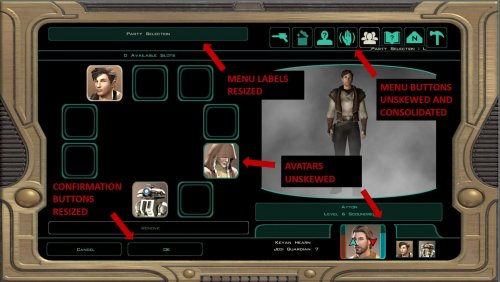
This mod aims to fix all* the stretching that occurs in widescreen (16:9) resolutions. There have already been other mods to fix the main HUD, but there are a lot of other elements in the game that are in need of correction, such as the pause menu, galaxy map, loading screens, etc. *For now, I recommend that you download "Widescreen UI Fix for Knights of the Old Republic 2: The Sith Lords" by Achilles to fix the HUD, and combine it with this mod to un-stretch everything else. I have included my own experimental version of a 16:9 HUD, but right now I think most people would prefer Achilles' version.- 9 comments
- 13 reviews
-
- 5
-
-
- experience
- improved
- (and 7 more)







.thumb.jpg.c81967217a25b0e92ac98a0a5d8bf283.jpg)

