Search the Community
Showing results for tags 'qol'.
Found 12 results
-
Version 1.0.1
376 downloads
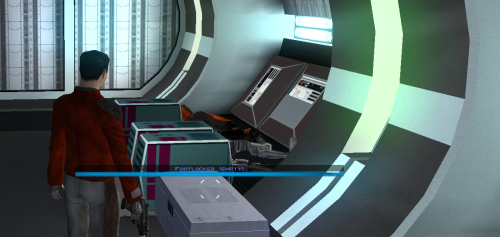
Description Appends " (empty)" to the floating hover name of any container or lootable corpse that currently holds nothing. Now you can tell an empty footlocker from a full one at a glance without stopping to open it. Shows the moment you first see an initially-empty container. Updates live the instant you loot one empty, while you're still hovering over it. Covers lootable corpses too (KOTOR stores them as "Remains" containers) Installation instructions 1. Copy these three files into your KOTOR folder, next to `swkotor.exe` (typically `C:\Program Files (x86)\Steam\steamapps\common\swkotor\`): - MarkEmptyContainers.exe - Apply Container Patch.bat - Revert Container Patch.bat 2. Double-click `Apply Container Patch.bat`. It prints `SUCCESS` and makes a backup. Launch the game and enjoy. Uninstallation instructions 1. Double-click `Revert Container Patch.bat`. This restores `swkotor.exe` exactly as it was (from the backup it made: `swkotor.exe.MarkEmpty.bak`). Requirements Requires the KOTOR Editable Executable mod to allow the patcher to work. https://deadlystream.com/files/file/1320-kotor-editable-executable/ -
Version 3.0
496 downloads
BIGGER DIALOG FONT ━━━━━━━━━━━━━━━━━━━━━━━━━━━━━━━━━━━━ DESCRIPTION Bigger Dialog Font increases dialogue and menu description font size in KOTOR 2 for better readability on modern displays. The main download includes all available font sizes: 20% Bigger 25% Bigger 30% Bigger 40% Bigger 50% Bigger 60% Bigger 70% Bigger 80% Bigger Choose whichever size works best for your resolution and setup. The download also includes an optional Font Upscaled folder. Increasing the original font size can make the text appear low-resolution or blurry, so these upscaled font textures can be used to make the larger text look clearer. ━━━━━━━━━━━━━━━━━━━━━━━━━━━━━━━━━━━━ DIALOG SUBTITLE WORD WRAP BETA The optional Dialog Subtitle Word Wrap beta modifies dialog.tlk to add line breaks to dialogue subtitles, helping prevent subtitle text from extending off-screen when using the larger font sizes. The add-on is now modular and includes three versions: Vanilla TSLRCM TSLRCM + KOTOR 2 Community Patch Choose the version that matches your installation. The requirements only apply to the Dialog Subtitle Word Wrap version you choose. The regular Bigger Dialog Font files do not have any known mod requirements. Important: Always back up your original dialog.tlk before installing the Dialog Subtitle Word Wrap beta. ━━━━━━━━━━━━━━━━━━━━━━━━━━━━━━━━━━━━ INSTALLATION Main Font Files Download and extract the ZIP file. Open the extracted folder. Choose your preferred font size. Place the files from your chosen size folder into your KOTOR 2 override folder. Replace files if prompted. Optional Upscaled Font If you want clearer font textures, open the Font Upscaled folder and place its files into your override folder. This is optional, but recommended if the enlarged font looks blurry or low-resolution. Dialog Subtitle Word Wrap Beta Read the included README first. Choose the version that matches your setup: Vanilla TSLRCM TSLRCM + KOTOR 2 Community Patch Back up your original dialog.tlk. Place the new dialog.tlk into your main KOTOR 2 directory, where the game executable is located. ━━━━━━━━━━━━━━━━━━━━━━━━━━━━━━━━━━━━ EXTRA NOTES Screenshots were taken at 1920x1080. ━━━━━━━━━━━━━━━━━━━━━━━━━━━━━━━━━━━━ CHANGELOG Consolidated all font sizes into the main download. Added 20%, 25%, 30%, 40%, 50%, 60%, 70%, and 80% font size options. Added optional upscaled font textures for clearer enlarged text. Dialog Subtitle Word Wrap beta is now modular. Added separate Dialog Subtitle Word Wrap versions for Vanilla, TSLRCM, and TSLRCM + KOTOR 2 Community Patch.-
- 1
-

-
- qol
- hud/interface
- (and 5 more)
-
Version 2.0
383 downloads
True Controller Support adds modern controller support to Star Wars: Knights of the Old Republic through an ASI plugin. This mod is designed to add console style controller support for Kotor 1 without the need for external software or steam input. This major update includes two separate downloads: - Xbox Controller Support Version - PlayStation Controller Support Version (Might support other Gamepads but hasn't been tested.) Main Features Adds console like controller support to KOTOR with natural analog left stick walk/run movement, horizontal right stick camera control, and D-pad/Touchpad cursor emulation for seamless menu and UI navigation. Default Controls Shared Xbox and PlayStation controls: LB / L1 = Pause RB / R1 = Cursor Select (Left Click) LT / L2 = Cycle Target RT / R2 = Cycle Target Left Stick = Movement Right Stick = Camera Movement (horizontal like console) A / Cross = Default Action B / Circle = Escape / Game Menu Y / Triangle = Cancel Action X / Square = Swap Character LS / L3 = Flourish Weapon RS / R3 = First-Person Free Look Start = Escape / Game Menu Select / Touchpad = Solo Mode Right Stick Up/Down = Scroll through the action and floating hotbar menu items and actions (Mouse scroll wheel) Xbox Version Notes Xbox uses the D-pad for cursor emulation D-pad directional arrow navigation is disabled by default (This is because the cursor moves at the same time) D-pad directional navigation can be enabled in kotorgamepad.ini (It works, but it is slightly janky, so it is disabled by default.) PlayStation Version Notes PlayStation uses the touchpad for cursor emulation by default Cursor emulation can be switched to the D-pad in kotorgamepad.ini D-pad directional arrow navigation is enabled by default (This works better on PlayStation because cursor emulation is handled by the touchpad) Note: Playstation touchpad cursor can be adjusted using the ini file, you got alot of settings, I've made some adjustments myself but haven't really fine tuned it. Installation and setup: In-Game Settings: Set your in-game keybinds and controls to default Leave Mouse Look disabled (Mouse Look is disabled by default in the game) Do not enable Mouse Look for this version of the mod like previous versions. Make sure steam input is disabled if updating from an older version: Old files to remove if present: K1Controller.ini K1Controller.asi K1Controller.log dinput8.dll SDL2.dll Xbox Controller Version install instructions Download the Xbox version Extract the contents of the zip file Place the following files into your main swkotor directory: dinput8.dll kotorgamepad.ini kotorgamepad.asi PlayStation Controller Version install instructions Download the PlayStation version Extract the contents of the zip file Place the following files into your main swkotor directory: dinput8.dll SDL2.dll kotorgamepad.ini kotorgamepad.asi Switching Versions If you are switching from Xbox to PlayStation, delete the Xbox version files first If you are switching from PlayStation to Xbox, delete the PlayStation version files first Then install the version you want to use Replacing the files directly may work, but a clean reinstall is recommended Uninstallation: Xbox version: Delete dinput8.dll Delete kotorgamepad.ini Delete kotorgamepad.asi PlayStation version: Delete dinput8.dll Delete SDL2.dll Delete kotorgamepad.ini Delete kotorgamepad.asi Credits: Key Mouse Accessibility by LaneDibello for reference. -
Version 1.0.0
335 downloads
Bigger Font increases the text size throughout Knights of the Old Republic, including menus, dialog, and subtitles. This mod is intended for widescreen/high-resolution setups where the default KOTOR text can look too small, especially at 1080p and higher resolutions. File Options 30 Percent Bigger Font 40 Percent Bigger Font All versions also include TGA texture files upscaled 4x with Topaz Gigapixel. This keeps the text looking sharp and high resolution, since increasing the font size makes the original textures look very blurry and low res. Requirements: KotOR High Resolution Menus (Make sure you have it's prerequisites installed.) K1 Main Menu Widescreen Fix HD UI Menu Pack Remove Duplicate TGA-TPC This is required because some installs may have duplicate TPC files that can override the TGA files from this mod. Updating from an older version Before installing, delete the old .txi and matching .tga font files from your Override folder if present: dialogfont10x10 dialogfont10x10a dialogfont10x10b dialogfont12x16 dialogfont16x16 dialogfont16x16a dialogfont16x16b dialogfont32x32 fnt_console fnt_credits fnt_creditsa fnt_creditsb fnt_d10x10b fnt_d16x16 fnt_d16x16a fnt_d16x16b fnt_dialog16x16 fnt_galahad14 Install Instructions Choose one version: 30 percent, 40 percent, or 50 percent. Extract the zip file, then place the included Override folder into your main swkotor directory. Alternatively, you can place the included TGA and TXI files directly into your existing Override folder. Choose to replace files if prompted. Dialog.tlk Beta Add-on optional file This optional beta add-on requires Kotor 1 Community Patch. Before installing, back up your original dialog.tlk file. To install, place the included dialog.tlk file into your main swkotor directory and replace when prompted. If the font does not appear in-game, use Remove Duplicate TGA-TPC to check for duplicate TPC files that may be overriding the TGA file If the font does not appear in-game, use Remove Duplicate TGA-TPC to check for duplicate TPC files that may be overriding the TGA files. Note: Some NPC subtitles and text in the description box slightly go off screen. This is very minor and not really noticeable, I am currently looking for a workaround. -
View File K1 Marked Empty Containers Description Appends " (empty)" to the floating hover name of any container or lootable corpse that currently holds nothing. Now you can tell an empty footlocker from a full one at a glance without stopping to open it. Shows the moment you first see an initially-empty container. Updates live the instant you loot one empty, while you're still hovering over it. Covers lootable corpses too (KOTOR stores them as "Remains" containers) Installation instructions 1. Copy these three files into your KOTOR folder, next to `swkotor.exe` (typically `C:\Program Files (x86)\Steam\steamapps\common\swkotor\`): - MarkEmptyContainers.exe - Apply Container Patch.bat - Revert Container Patch.bat 2. Double-click `Apply Container Patch.bat`. It prints `SUCCESS` and makes a backup. Launch the game and enjoy. Uninstallation instructions 1. Double-click `Revert Container Patch.bat`. This restores `swkotor.exe` exactly as it was (from the backup it made: `swkotor.exe.MarkEmpty.bak`). Requirements Requires the KOTOR Editable Executable mod to allow the patcher to work. https://deadlystream.com/files/file/1320-kotor-editable-executable/ Submitter ShaeMyName Submitted 06/29/2026 Category Mods K1R Compatible Yes
-
View File Bigger Dialog Font (K1) Bigger Font increases the text size throughout Knights of the Old Republic, including menus, dialog, and subtitles. This mod is intended for widescreen/high-resolution setups where the default KOTOR text can look too small, especially at 1080p and higher resolutions. File Options 30 Percent Bigger Font 40 Percent Bigger Font All versions also include TGA texture files upscaled 4x with Topaz Gigapixel. This keeps the text looking sharp and high resolution, since increasing the font size makes the original textures look very blurry and low res. Requirements: KotOR High Resolution Menus (Make sure you have it's prerequisites installed.) K1 Main Menu Widescreen Fix HD UI Menu Pack Remove Duplicate TGA-TPC This is required because some installs may have duplicate TPC files that can override the TGA files from this mod. Updating from an older version Before installing, delete the old .txi and matching .tga font files from your Override folder if present: dialogfont10x10 dialogfont10x10a dialogfont10x10b dialogfont12x16 dialogfont16x16 dialogfont16x16a dialogfont16x16b dialogfont32x32 fnt_console fnt_credits fnt_creditsa fnt_creditsb fnt_d10x10b fnt_d16x16 fnt_d16x16a fnt_d16x16b fnt_dialog16x16 fnt_galahad14 Install Instructions: Choose one version: 30 percent, 40 percent, or 50 percent. Extract the zip file. Place the Override folder into your main swkotor directory. Alternatively, place the TGA and TXI files directly into your Override folder. Choose to replace if prompted If the font does not appear in-game, use Remove Duplicate TGA-TPC to check for duplicate TPC files that may be overriding the TGA files. Note: Some NPC subtitles and text in the description box slightly go off screen. This is very minor and not really noticeable, I am currently looking for a workaround. Submitter Saul0097 Submitted 06/18/2026 Category Mods K1R Compatible Yes
-
View File True Controller Support (K1) True Controller Support adds modern controller support to Star Wars: Knights of the Old Republic through an ASI plugin. This mod is designed to add console style controller support for Kotor 1 without the need for external software or steam input. This major update includes two separate downloads: - Xbox Controller Support Version - PlayStation Controller Support Version (Might support other Gamepads but hasn't been tested.) Main Features Adds console like controller support to KOTOR with natural analog left stick walk/run movement, horizontal right stick camera control, and D-pad/Touchpad cursor emulation for seamless menu and UI navigation. Default Controls Shared Xbox and PlayStation controls: LB / L1 = Pause RB / R1 = Cursor Select (Left Click) LT / L2 = Cycle Target RT / R2 = Cycle Target Left Stick = Movement Right Stick = Camera Movement A / Cross = Default Action B / Circle = Escape / Game Menu Y / Triangle = Cancel Action X / Square = Swap Character LS / L3 = Flourish Weapon RS / R3 = First-Person Free Look Start = Escape / Game Menu Select / Touchpad = Solo Mode Right Stick Up/Down = Cycle through the action menu and floating hotbar (Mouse scroll wheel) Xbox Version Notes Xbox uses the D-pad for cursor emulation D-pad directional arrow navigation is disabled by default (This is because the cursor moves at the same time) D-pad directional navigation can be enabled in kotorgamepad.ini (It works, but it is slightly janky, so it is disabled by default.) PlayStation Version Notes PlayStation uses the touchpad for cursor emulation by default Cursor emulation can be switched to the D-pad in kotorgamepad.ini D-pad directional arrow navigation is enabled by default (This works better on PlayStation because cursor emulation is handled by the touchpad) Note: Playstation touchpad cursor can be adjusted using the ini file, you got alot of settings, I've made some adjustments myself but haven't really fine tuned it. Installation and setup: In-Game Settings: Set your in-game keybinds and controls to default Leave Mouse Look disabled (Mouse Look is disabled by default in the game) Do not enable Mouse Look for this version of the mod like previous versions. Make sure steam input is disabled if updating from an older version: Old files to remove if present: K1Controller.ini K1Controller.asi K1Controller.log dinput8.dll SDL2.dll Xbox Controller Version install instructions Download the Xbox version Extract the contents of the zip file Place the following files into your main swkotor directory: dinput8.dll kotorgamepad.ini kotorgamepad.asi PlayStation Controller Version install instructions Download the PlayStation version Extract the contents of the zip file Place the following files into your main swkotor directory: dinput8.dll SDL2.dll kotorgamepad.ini kotorgamepad.asi Switching Versions If you are switching from Xbox to PlayStation, delete the Xbox version files first If you are switching from PlayStation to Xbox, delete the PlayStation version files first Then install the version you want to use Replacing the files directly may work, but a clean reinstall is recommended Uninstallation: Xbox version: Delete dinput8.dll Delete kotorgamepad.ini Delete kotorgamepad.asi PlayStation version: Delete dinput8.dll Delete SDL2.dll Delete kotorgamepad.ini Delete kotorgamepad.asi Credits: Key Mouse Accessibility by LaneDibello for reference. Submitter Saul0097 Submitted 05/15/2026 Category Mods K1R Compatible Yes
-
View File Auto-Pazaak (Simulate Pazaak without playing) Auto-Pazaak mod for KotOR 1 by HDR1 Pazaak in KotOR 1 is a frustrating exercise for a few reasons. However, the biggest problem with Pazaak is the sheer amount you have to play if you want all possible credits from playing cards. By my calculations - not including infinite Pazaak players - you can earn 17050 credits in the Xbox version and 15950 credits on PC along with some cards and a Vibration Cell, plus a discount in Suvam Tan's shop on Yavin. Sounds good overall - except you have to win a total of 64 matches in Pazaak to get all this. This is ridiculous, especially compared to KotOR 2, where there's only 15 or so matches to win. Even with save-scumming, it's enough to drive a person mad. This mod is intended for completionist players like myself, who are crazy enough to play 64 matches of Pazaak every time they replay KotOR while hating every second of it. The mod allows you to simulate playing Pazaak, instead of actually playing Pazaak. However, my intention was not to make a cheat mod but to make a quality of life mod, so this is only for NPCs that have limited rewards. As such, Gelrood on Taris and Toll Apkar on Korriban are not affected, and while Kudos can be played indefinitely, you will not be able to skip his Pazaak matches after you've gotten the Vibration Cell from him - if you want to grind infinite Pazaak matches with him, you have to do it manually. List of the NPCs this mod affects and their rewards: Taris: Niklos - 200 credits Dantooine: Sol'aa - 600 credits + Pazaak cards Tatooine: Kudos - 2300 credits + Vibration Cell (see notes) Tatooine: Furko Nellis - 750 credits Kashyyyk: Fodo Medo - 1700 credits + Pazaak cards Manaan: Jolan Aphett - 2000 credits + Pazaak cards Manaan: Gonto Yas - 2000 credits Yavin: Suvam Tan - 7500 credits + store discount Installation: copy the files to your Override folder. Compatibility: the mod should be compatible with any mod that doesn't alter the included .dlg and .ncs files. I don't think there are many mods that do anything with the Pazaak players, so it should be mostly fine. I think some mods may make alterations to Suvam Tan's dialogue, if you have a mod like that, don't install yav47_suvam.dlg or simpaz_suv.ncs. Usage: After installing the mod, when you talk to a Pazaak-playing NPC, you will come across an option to [Simulate Pazaak.] - as long as you have a Pazaak deck. When you choose this option, you will gain all the credits you would normally be able to win from the NPC. Afterwards, you need to talk to the NPC again to get their final Pazaak dialogue and potential extra rewards. For example, after you use Simulate on Sol'aa, you should talk to him again and he will give you the extra cards you get for beating him. Same with every other character who gives you a special reward for beating them enough times. I deliberately made the simulation scripts this way, to avoid potentially breaking dialogue trees and to make sure you couldn't simulate Pazaak multiple times. Notes: In the vanilla PC version, Kudos on Tatooine bets only 50 credits in his final two matches, while on Xbox he bets 600. The K1 community patch tried fixing this, but for some reason it sets his wager to 500 instead of 600. All sources I could find mention 600 credits, so I included a fix for this as well, and Kudos now bets 600 credits as he does on Xbox. The total reward you get for simming is thus 2300 credits, and he also bets 600 credits if you decide to play him manually afterwards. Warnings: It's worth saving before you talk to a Pazaak player, just in case something is broken. ALWAYS talk to the Pazaak players after you beat them. This way you will get their closing dialogue properly which triggers scripts and prevents any potential bugs. I don't know what problems may happen by not talking to them, so just talk to them to be safe. If you play a real game of Pazaak with an opponent, you will NOT be able to sim afterwards. This is to ensure you can't get more credits than intended. Avoid playing for real if you want to simulate. I tried to make sure that you can't lose the option to simulate Pazaak while exploring the dialogue trees, but I may have overlooked something. If you want to be 100% sure, choose the simulate option immediately when it pops up. Be careful with Suvam Tan on Yavin. Due to the way his dialogue is structured, I went with the safe route and made it so you can only sim him when you first ask if he plays Pazaak. If you want to play him, you have to choose that option when it pops up, otherwise, you'll have to play him manually. Bugs: I could not make Suvam's dialog function properly like the rest. After you beat him, he will not mention giving you a discount, instead, he just says it was a good match. However, if you check his shop, you will see that you do in fact have the discount. He will also no longer play for money. So Suvam works properly, his dialogue is just bugged. I couldn't figure out how to fix it, so I don't intend to fix this anytime soon. However I included the source script for him, in case anyone wants to take a shot at it. Not a bug, but obviously if you simulate Pazaak, you will not get to see the progressing dialogue as you will skip ahead to the end. As such, some unique dialogue will not be available with the Pazaak players. This is mainly just them increasingly praising you or complaining about losing. Some of it is a bit funny, but none of it is relevant. Submitter HDR1 Submitted 05/12/2026 Category Mods K1R Compatible No
-
Version 1.0.0
180 downloads
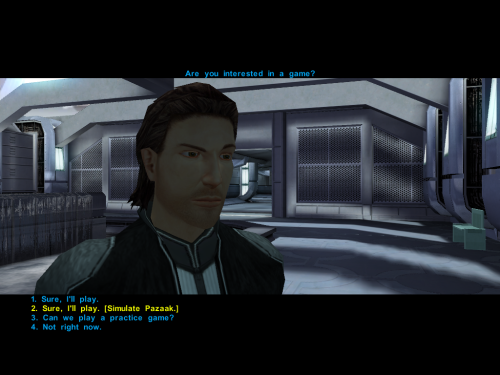
Auto-Pazaak mod for KotOR 1 by HDR1 Pazaak in KotOR 1 is a frustrating exercise for a few reasons. However, the biggest problem with Pazaak is the sheer amount you have to play if you want all possible credits from playing cards. By my calculations - not including infinite Pazaak players - you can earn 17050 credits in the Xbox version and 15950 credits on PC along with some cards and a Vibration Cell, plus a discount in Suvam Tan's shop on Yavin. Sounds good overall - except you have to win a total of 64 matches in Pazaak to get all this. This is ridiculous, especially compared to KotOR 2, where there's only 15 or so matches to win. Even with save-scumming, it's enough to drive a person mad. This mod is intended for completionist players like myself, who are crazy enough to play 64 matches of Pazaak every time they replay KotOR while hating every second of it. The mod allows you to simulate playing Pazaak, instead of actually playing Pazaak. However, my intention was not to make a cheat mod but to make a quality of life mod, so this is only for NPCs that have limited rewards. As such, Gelrood on Taris and Toll Apkar on Korriban are not affected, and while Kudos can be played indefinitely, you will not be able to skip his Pazaak matches after you've gotten the Vibration Cell from him - if you want to grind infinite Pazaak matches with him, you have to do it manually. List of the NPCs this mod affects and their rewards: Taris: Niklos - 200 credits Dantooine: Sol'aa - 600 credits + Pazaak cards Tatooine: Kudos - 2300 credits + Vibration Cell (see notes) Tatooine: Furko Nellis - 750 credits Kashyyyk: Fodo Medo - 1700 credits + Pazaak cards Manaan: Jolan Aphett - 2000 credits + Pazaak cards Manaan: Gonto Yas - 2000 credits Yavin: Suvam Tan - 7500 credits + store discount Installation: copy the files to your Override folder. Compatibility: the mod should be compatible with any mod that doesn't alter the included .dlg and .ncs files. I don't think there are many mods that do anything with the Pazaak players, so it should be mostly fine. I think some mods may make alterations to Suvam Tan's dialogue, if you have a mod like that, don't install yav47_suvam.dlg or simpaz_suv.ncs. Usage: After installing the mod, when you talk to a Pazaak-playing NPC, you will come across an option to [Simulate Pazaak.] - as long as you have a Pazaak deck. When you choose this option, you will gain all the credits you would normally be able to win from the NPC. Afterwards, you need to talk to the NPC again to get their final Pazaak dialogue and potential extra rewards. For example, after you use Simulate on Sol'aa, you should talk to him again and he will give you the extra cards you get for beating him. Same with every other character who gives you a special reward for beating them enough times. I deliberately made the simulation scripts this way, to avoid potentially breaking dialogue trees and to make sure you couldn't simulate Pazaak multiple times. Notes: In the vanilla PC version, Kudos on Tatooine bets only 50 credits in his final two matches, while on Xbox he bets 600. The K1 community patch tried fixing this, but for some reason it sets his wager to 500 instead of 600. All sources I could find mention 600 credits, so I included a fix for this as well, and Kudos now bets 600 credits as he does on Xbox. The total reward you get for simming is thus 2300 credits, and he also bets 600 credits if you decide to play him manually afterwards. Warnings: It's worth saving before you talk to a Pazaak player, just in case something is broken. ALWAYS talk to the Pazaak players after you beat them. This way you will get their closing dialogue properly which triggers scripts and prevents any potential bugs. I don't know what problems may happen by not talking to them, so just talk to them to be safe. If you play a real game of Pazaak with an opponent, you will NOT be able to sim afterwards. This is to ensure you can't get more credits than intended. Avoid playing for real if you want to simulate. I tried to make sure that you can't lose the option to simulate Pazaak while exploring the dialogue trees, but I may have overlooked something. If you want to be 100% sure, choose the simulate option immediately when it pops up. Be careful with Suvam Tan on Yavin. Due to the way his dialogue is structured, I went with the safe route and made it so you can only sim him when you first ask if he plays Pazaak. If you want to play him, you have to choose that option when it pops up, otherwise, you'll have to play him manually. Bugs: I could not make Suvam's dialog function properly like the rest. After you beat him, he will not mention giving you a discount, instead, he just says it was a good match. However, if you check his shop, you will see that you do in fact have the discount. He will also no longer play for money. So Suvam works properly, his dialogue is just bugged. I couldn't figure out how to fix it, so I don't intend to fix this anytime soon. However I included the source script for him, in case anyone wants to take a shot at it. Not a bug, but obviously if you simulate Pazaak, you will not get to see the progressing dialogue as you will skip ahead to the end. As such, some unique dialogue will not be available with the Pazaak players. This is mainly just them increasingly praising you or complaining about losing. Some of it is a bit funny, but none of it is relevant. -
View File Bigger Dialog Font BIGGER DIALOG FONT ━━━━━━━━━━━━━━━━━━━━━━━━━━━━━━━━━━━━ DESCRIPTION Bigger Dialog Font increases dialogue and menu description font size in KOTOR 2 for better readability on modern displays. The main download includes all available font sizes: 20% Bigger 25% Bigger 30% Bigger 40% Bigger 50% Bigger 60% Bigger 70% Bigger 80% Bigger Choose whichever size works best for your resolution and setup. The download also includes an optional Font Upscaled folder. Increasing the original font size can make the text appear low-resolution or blurry, so these upscaled font textures can be used to make the larger text look clearer. ━━━━━━━━━━━━━━━━━━━━━━━━━━━━━━━━━━━━ DIALOG SUBTITLE WORD WRAP BETA The optional Dialog Subtitle Word Wrap beta modifies dialog.tlk to add line breaks to dialogue subtitles, helping prevent subtitle text from extending off-screen when using the larger font sizes. The add-on is now modular and includes three versions: Vanilla TSLRCM TSLRCM + KOTOR 2 Community Patch Choose the version that matches your installation. The requirements only apply to the Dialog Subtitle Word Wrap version you choose. The regular Bigger Dialog Font files do not have any known mod requirements. Important: Always back up your original dialog.tlk before installing the Dialog Subtitle Word Wrap beta. ━━━━━━━━━━━━━━━━━━━━━━━━━━━━━━━━━━━━ INSTALLATION Main Font Files Download and extract the ZIP file. Open the extracted folder. Choose your preferred font size. Place the files from your chosen size folder into your KOTOR 2 override folder. Replace files if prompted. Optional Upscaled Font If you want clearer font textures, open the Font Upscaled folder and place its files into your Override folder. This is optional, but recommended if the enlarged font looks blurry or low-resolution. Dialog Subtitle Word Wrap Beta Read the included README first. Choose the version that matches your setup: Vanilla TSLRCM TSLRCM + KOTOR 2 Community Patch Back up your original dialog.tlk. Place the new dialog.tlk into your main KOTOR 2 directory, where the game executable is located. ━━━━━━━━━━━━━━━━━━━━━━━━━━━━━━━━━━━━ EXTRA NOTES Screenshots were taken at 1920x1080. ━━━━━━━━━━━━━━━━━━━━━━━━━━━━━━━━━━━━ CHANGELOG Consolidated all font sizes into the main download. Added 20%, 25%, 30%, 40%, 50%, 60%, 70%, and 80% font size options. Added optional upscaled font textures for clearer enlarged text. Dialog Subtitle Word Wrap beta is now modular. Added separate Dialog Subtitle Word Wrap versions for Vanilla, TSLRCM, and TSLRCM + KOTOR 2 Community Patch. Submitter Saul0097 Submitted 05/10/2026 Category Mods TSLRCM Compatible Yes
-
I've always found the cantina a player can visit in Anchorhead a bit dull due to the lack of NPCs doing idle animations there. Yeah, there are several dancers and musicians performing on an elevation next to the bar, but there're also four empty tables without any NPCs whatsoever. Is it possible for skilled Deadlystream modders to add more drinking & talking NPCs of various alien races to that module, please? The necessary animations are already in the game (Taris & Manaan cantinas). Adding more animated NPCs sitting at the tables will make KOTOR 1's Anchorhead cantina more lively and closer to its Episode IV's counterpart.
-
Hi, since my Reddit-Thread asking about an existing mod is still unanswered, I'm trying my luck here. I would love to have a mod that makes all Force Buffs apply to the party (like Valor) so that pre-buffing is less tedious and non-Jedi companions are more viable. Thank you in advance, have a nice day and stay healthy!