Search the Community
Showing results for tags 'quality of life'.
Found 8 results
-
Version 3.0
457 downloads
BIGGER DIALOG FONT ━━━━━━━━━━━━━━━━━━━━━━━━━━━━━━━━━━━━ DESCRIPTION Bigger Dialog Font increases dialogue and menu description font size in KOTOR 2 for better readability on modern displays. The main download includes all available font sizes: 20% Bigger 25% Bigger 30% Bigger 40% Bigger 50% Bigger 60% Bigger 70% Bigger 80% Bigger Choose whichever size works best for your resolution and setup. The download also includes an optional Font Upscaled folder. Increasing the original font size can make the text appear low-resolution or blurry, so these upscaled font textures can be used to make the larger text look clearer. ━━━━━━━━━━━━━━━━━━━━━━━━━━━━━━━━━━━━ DIALOG SUBTITLE WORD WRAP BETA The optional Dialog Subtitle Word Wrap beta modifies dialog.tlk to add line breaks to dialogue subtitles, helping prevent subtitle text from extending off-screen when using the larger font sizes. The add-on is now modular and includes three versions: Vanilla TSLRCM TSLRCM + KOTOR 2 Community Patch Choose the version that matches your installation. The requirements only apply to the Dialog Subtitle Word Wrap version you choose. The regular Bigger Dialog Font files do not have any known mod requirements. Important: Always back up your original dialog.tlk before installing the Dialog Subtitle Word Wrap beta. ━━━━━━━━━━━━━━━━━━━━━━━━━━━━━━━━━━━━ INSTALLATION Main Font Files Download and extract the ZIP file. Open the extracted folder. Choose your preferred font size. Place the files from your chosen size folder into your KOTOR 2 override folder. Replace files if prompted. Optional Upscaled Font If you want clearer font textures, open the Font Upscaled folder and place its files into your override folder. This is optional, but recommended if the enlarged font looks blurry or low-resolution. Dialog Subtitle Word Wrap Beta Read the included README first. Choose the version that matches your setup: Vanilla TSLRCM TSLRCM + KOTOR 2 Community Patch Back up your original dialog.tlk. Place the new dialog.tlk into your main KOTOR 2 directory, where the game executable is located. ━━━━━━━━━━━━━━━━━━━━━━━━━━━━━━━━━━━━ EXTRA NOTES Screenshots were taken at 1920x1080. ━━━━━━━━━━━━━━━━━━━━━━━━━━━━━━━━━━━━ CHANGELOG Consolidated all font sizes into the main download. Added 20%, 25%, 30%, 40%, 50%, 60%, 70%, and 80% font size options. Added optional upscaled font textures for clearer enlarged text. Dialog Subtitle Word Wrap beta is now modular. Added separate Dialog Subtitle Word Wrap versions for Vanilla, TSLRCM, and TSLRCM + KOTOR 2 Community Patch.-
- 1
-

-
- qol
- hud/interface
- (and 5 more)
-
Version 1.0.0
55 downloads
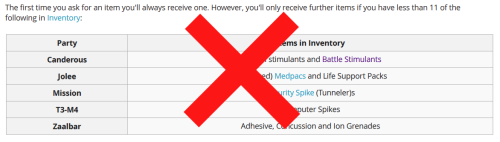
Removes inventory quantity check from free companion items, and makes companions give the items in bulk, instead of one at a time. Description Canderous, Jolee, Mission, T3-M4, and Zaalbar can all give you a selection of free items throughout the game. The way this works is obfuscated from the player, but with some trial and error, it becomes obvious that the system is rather poorly thought out, and encourages extremely degenerate gameplay to exploit it. After first boarding the Ebon Hawk, each of the companions can give up to 10 items (11 in the case of Canderous, Mission, and T3 for some reason). Every time a Star Map is found, this number increases by 20, up to 110 (or 111) items in total. However, if you have more than 10 of the appropriate items, you can also not receive an item. This can be circumvented by dumping the items into a container, or selling them, and talking to the companion again. This extremely annoying. This mod removes the check for the having too many of the given item already in the party inventory. This mean you will no longer have to dump your inventory items in a container to maximize the amount of items you receive. This does not change the total or type of items, it just removes the busywork required to get them. This mod also makes the companions give all of their items in bulk, instead of one at a time. Previously, you only received one item, and would have to repeatedly speak to the companion and ask them for items, until they refused you, to know that you had reached the item limit. This represents 553 conversations of wasted time (not including the conversation where the companions refuse to give you the items). It is now much faster to actually get these items. Canderous has special dialogue based on which items he gives you. He will still play that line, but as he now gives you multiple items as random, this line doesn't actually reflect anything. Similarly the player will still ask for one item, and the companions will respond as if one item was given. I will not be changing that, this is just a convenience mod. There are optional files available to make Zaalbar and Canderous choose a single item type at random, and give only items of that type, instead of randomly choosing which item type to give for each individual item, leading to a relatively even variety. Canderous was originally going to give Battle Stims, in addition to the Adrenals he gives in the vanilla game, and by default he still checked to see if the player had Battle Stims in there inventory when determining whether they were eligible to receive Adrenals. There is an optional file to restore this Battle Stim functionality, making Canderous randomly give Battle Stims in addition to Adrenals. This will not work with the Single Item Type optional, as Canderous' dialogue is not setup to support it. Install/Uninstall Copy the contents of the 0 - Install folder to your game folder. You can copy the contents of one of the 1 - Canderous **** optional folders, if you want that functionality. You can only choose 1 of these You can copy the contents of the 2 - Zaalbar Single Type Items if you want that functionality. Compatibility Will be compatible with all mods that don't make edits to the companion item distribution system. This mod doesn't edit any dialogue, only the underlying scripts. Recommended Mods KotOR 1 Community Patch is strongly recommended. Special Thanks/Acknowledgements KOTOR Tool – Fred Tetra DeNCS – JdNoa & Dashus DLGEditor – tk102 K-GFF – tk102 TSL Patcher – stoffe KotOR Scripting Tool - Blue Holocron Toolset– Cortisol & th3w1zard1 Mirrors Nexus ModPub Other Links Nexus ModPub Deadlystream YouTube Twitch Discord Twitter darth@darthbdaman.com Less Annoying Freebies by darthbdaman is a trivial modification and does not have a copyright license -
View File Less Annoying Freebies Removes inventory quantity check from free companion items, and makes companions give the items in bulk, instead of one at a time. Description Canderous, Jolee, Mission, T3-M4, and Zaalbar can all give you a selection of free items throughout the game. The way this works is obfuscated from the player, but with some trial and error, it becomes obvious that the system is rather poorly thought out, and encourages extremely degenerate gameplay to exploit it. After first boarding the Ebon Hawk, each of the companions can give up to 10 items (11 in the case of Canderous, Mission, and T3 for some reason). Every time a Star Map is found, this number increases by 20, up to 110 (or 111) items in total. However, if you have more than 10 of the appropriate items, you can also not receive an item. This can be circumvented by dumping the items into a container, or selling them, and talking to the companion again. This extremely annoying. This mod removes the check for the having too many of the given item already in the party inventory. This mean you will no longer have to dump your inventory items in a container to maximize the amount of items you receive. This does not change the total or type of items, it just removes the busywork required to get them. This mod also makes the companions give all of their items in bulk, instead of one at a time. Previously, you only received one item, and would have to repeatedly speak to the companion and ask them for items, until they refused you, to know that you had reached the item limit. This represents 553 conversations of wasted time (not including the conversation where the companions refuse to give you the items). It is now much faster to actually get these items. Canderous has special dialogue based on which items he gives you. He will still play that line, but as he now gives you multiple items as random, this line doesn't actually reflect anything. Similarly the player will still ask for one item, and the companions will respond as if one item was given. I will not be changing that, this is just a convenience mod. There are optional files available to make Zaalbar and Canderous choose a single item type at random, and give only items of that type, instead of randomly choosing which item type to give for each individual item, leading to a relatively even variety. Canderous was originally going to give Battle Stims, in addition to the Adrenals he gives in the vanilla game, and by default he still checked to see if the player had Battle Stims in there inventory when determining whether they were eligible to receive Adrenals. There is an optional file to restore this Battle Stim functionality, making Canderous randomly give Battle Stims in addition to Adrenals. This will not work with the Single Item Type optional, as Canderous' dialogue is not setup to support it. Install/Uninstall Copy the contents of the 0 - Install folder to your game folder. You can copy the contents of one of the 1 - Canderous **** optional folders, if you want that functionality. You can only choose 1 of these You can copy the contents of the 2 - Zaalbar Single Type Items if you want that functionality. Compatibility Will be compatible with all mods that don't make edits to the companion item distribution system. This mod doesn't edit any dialogue, only the underlying scripts. Recommended Mods KotOR 1 Community Patch is strongly recommended. Special Thanks/Acknowledgements KOTOR Tool – Fred Tetra DeNCS – JdNoa & Dashus DLGEditor – tk102 K-GFF – tk102 TSL Patcher – stoffe KotOR Scripting Tool - Blue Holocron Toolset– Cortisol & th3w1zard1 Mirrors Nexus ModPub Other Links Nexus ModPub Deadlystream YouTube Twitch Discord Twitter darth@darthbdaman.com Less Annoying Freebies by darthbdaman is a trivial modification and does not have a copyright license Submitter darthbdaman Submitted 07/07/2026 Category Mods K1R Compatible Yes
-
Version 2.0
367 downloads
True Controller Support adds modern controller support to Star Wars: Knights of the Old Republic through an ASI plugin. This mod is designed to add console style controller support for Kotor 1 without the need for external software or steam input. This major update includes two separate downloads: - Xbox Controller Support Version - PlayStation Controller Support Version (Might support other Gamepads but hasn't been tested.) Main Features Adds console like controller support to KOTOR with natural analog left stick walk/run movement, horizontal right stick camera control, and D-pad/Touchpad cursor emulation for seamless menu and UI navigation. Default Controls Shared Xbox and PlayStation controls: LB / L1 = Pause RB / R1 = Cursor Select (Left Click) LT / L2 = Cycle Target RT / R2 = Cycle Target Left Stick = Movement Right Stick = Camera Movement (horizontal like console) A / Cross = Default Action B / Circle = Escape / Game Menu Y / Triangle = Cancel Action X / Square = Swap Character LS / L3 = Flourish Weapon RS / R3 = First-Person Free Look Start = Escape / Game Menu Select / Touchpad = Solo Mode Right Stick Up/Down = Scroll through the action and floating hotbar menu items and actions (Mouse scroll wheel) Xbox Version Notes Xbox uses the D-pad for cursor emulation D-pad directional arrow navigation is disabled by default (This is because the cursor moves at the same time) D-pad directional navigation can be enabled in kotorgamepad.ini (It works, but it is slightly janky, so it is disabled by default.) PlayStation Version Notes PlayStation uses the touchpad for cursor emulation by default Cursor emulation can be switched to the D-pad in kotorgamepad.ini D-pad directional arrow navigation is enabled by default (This works better on PlayStation because cursor emulation is handled by the touchpad) Note: Playstation touchpad cursor can be adjusted using the ini file, you got alot of settings, I've made some adjustments myself but haven't really fine tuned it. Installation and setup: In-Game Settings: Set your in-game keybinds and controls to default Leave Mouse Look disabled (Mouse Look is disabled by default in the game) Do not enable Mouse Look for this version of the mod like previous versions. Make sure steam input is disabled if updating from an older version: Old files to remove if present: K1Controller.ini K1Controller.asi K1Controller.log dinput8.dll SDL2.dll Xbox Controller Version install instructions Download the Xbox version Extract the contents of the zip file Place the following files into your main swkotor directory: dinput8.dll kotorgamepad.ini kotorgamepad.asi PlayStation Controller Version install instructions Download the PlayStation version Extract the contents of the zip file Place the following files into your main swkotor directory: dinput8.dll SDL2.dll kotorgamepad.ini kotorgamepad.asi Switching Versions If you are switching from Xbox to PlayStation, delete the Xbox version files first If you are switching from PlayStation to Xbox, delete the PlayStation version files first Then install the version you want to use Replacing the files directly may work, but a clean reinstall is recommended Uninstallation: Xbox version: Delete dinput8.dll Delete kotorgamepad.ini Delete kotorgamepad.asi PlayStation version: Delete dinput8.dll Delete SDL2.dll Delete kotorgamepad.ini Delete kotorgamepad.asi Credits: Key Mouse Accessibility by LaneDibello for reference. -
Version 1.0.0
304 downloads
Bigger Font increases the text size throughout Knights of the Old Republic, including menus, dialog, and subtitles. This mod is intended for widescreen/high-resolution setups where the default KOTOR text can look too small, especially at 1080p and higher resolutions. File Options 30 Percent Bigger Font 40 Percent Bigger Font All versions also include TGA texture files upscaled 4x with Topaz Gigapixel. This keeps the text looking sharp and high resolution, since increasing the font size makes the original textures look very blurry and low res. Requirements: KotOR High Resolution Menus (Make sure you have it's prerequisites installed.) K1 Main Menu Widescreen Fix HD UI Menu Pack Remove Duplicate TGA-TPC This is required because some installs may have duplicate TPC files that can override the TGA files from this mod. Updating from an older version Before installing, delete the old .txi and matching .tga font files from your Override folder if present: dialogfont10x10 dialogfont10x10a dialogfont10x10b dialogfont12x16 dialogfont16x16 dialogfont16x16a dialogfont16x16b dialogfont32x32 fnt_console fnt_credits fnt_creditsa fnt_creditsb fnt_d10x10b fnt_d16x16 fnt_d16x16a fnt_d16x16b fnt_dialog16x16 fnt_galahad14 Install Instructions Choose one version: 30 percent, 40 percent, or 50 percent. Extract the zip file, then place the included Override folder into your main swkotor directory. Alternatively, you can place the included TGA and TXI files directly into your existing Override folder. Choose to replace files if prompted. Dialog.tlk Beta Add-on optional file This optional beta add-on requires Kotor 1 Community Patch. Before installing, back up your original dialog.tlk file. To install, place the included dialog.tlk file into your main swkotor directory and replace when prompted. If the font does not appear in-game, use Remove Duplicate TGA-TPC to check for duplicate TPC files that may be overriding the TGA file If the font does not appear in-game, use Remove Duplicate TGA-TPC to check for duplicate TPC files that may be overriding the TGA files. Note: Some NPC subtitles and text in the description box slightly go off screen. This is very minor and not really noticeable, I am currently looking for a workaround. -
View File Bigger Dialog Font (K1) Bigger Font increases the text size throughout Knights of the Old Republic, including menus, dialog, and subtitles. This mod is intended for widescreen/high-resolution setups where the default KOTOR text can look too small, especially at 1080p and higher resolutions. File Options 30 Percent Bigger Font 40 Percent Bigger Font All versions also include TGA texture files upscaled 4x with Topaz Gigapixel. This keeps the text looking sharp and high resolution, since increasing the font size makes the original textures look very blurry and low res. Requirements: KotOR High Resolution Menus (Make sure you have it's prerequisites installed.) K1 Main Menu Widescreen Fix HD UI Menu Pack Remove Duplicate TGA-TPC This is required because some installs may have duplicate TPC files that can override the TGA files from this mod. Updating from an older version Before installing, delete the old .txi and matching .tga font files from your Override folder if present: dialogfont10x10 dialogfont10x10a dialogfont10x10b dialogfont12x16 dialogfont16x16 dialogfont16x16a dialogfont16x16b dialogfont32x32 fnt_console fnt_credits fnt_creditsa fnt_creditsb fnt_d10x10b fnt_d16x16 fnt_d16x16a fnt_d16x16b fnt_dialog16x16 fnt_galahad14 Install Instructions: Choose one version: 30 percent, 40 percent, or 50 percent. Extract the zip file. Place the Override folder into your main swkotor directory. Alternatively, place the TGA and TXI files directly into your Override folder. Choose to replace if prompted If the font does not appear in-game, use Remove Duplicate TGA-TPC to check for duplicate TPC files that may be overriding the TGA files. Note: Some NPC subtitles and text in the description box slightly go off screen. This is very minor and not really noticeable, I am currently looking for a workaround. Submitter Saul0097 Submitted 06/18/2026 Category Mods K1R Compatible Yes
-
View File True Controller Support (K1) True Controller Support adds modern controller support to Star Wars: Knights of the Old Republic through an ASI plugin. This mod is designed to add console style controller support for Kotor 1 without the need for external software or steam input. This major update includes two separate downloads: - Xbox Controller Support Version - PlayStation Controller Support Version (Might support other Gamepads but hasn't been tested.) Main Features Adds console like controller support to KOTOR with natural analog left stick walk/run movement, horizontal right stick camera control, and D-pad/Touchpad cursor emulation for seamless menu and UI navigation. Default Controls Shared Xbox and PlayStation controls: LB / L1 = Pause RB / R1 = Cursor Select (Left Click) LT / L2 = Cycle Target RT / R2 = Cycle Target Left Stick = Movement Right Stick = Camera Movement A / Cross = Default Action B / Circle = Escape / Game Menu Y / Triangle = Cancel Action X / Square = Swap Character LS / L3 = Flourish Weapon RS / R3 = First-Person Free Look Start = Escape / Game Menu Select / Touchpad = Solo Mode Right Stick Up/Down = Cycle through the action menu and floating hotbar (Mouse scroll wheel) Xbox Version Notes Xbox uses the D-pad for cursor emulation D-pad directional arrow navigation is disabled by default (This is because the cursor moves at the same time) D-pad directional navigation can be enabled in kotorgamepad.ini (It works, but it is slightly janky, so it is disabled by default.) PlayStation Version Notes PlayStation uses the touchpad for cursor emulation by default Cursor emulation can be switched to the D-pad in kotorgamepad.ini D-pad directional arrow navigation is enabled by default (This works better on PlayStation because cursor emulation is handled by the touchpad) Note: Playstation touchpad cursor can be adjusted using the ini file, you got alot of settings, I've made some adjustments myself but haven't really fine tuned it. Installation and setup: In-Game Settings: Set your in-game keybinds and controls to default Leave Mouse Look disabled (Mouse Look is disabled by default in the game) Do not enable Mouse Look for this version of the mod like previous versions. Make sure steam input is disabled if updating from an older version: Old files to remove if present: K1Controller.ini K1Controller.asi K1Controller.log dinput8.dll SDL2.dll Xbox Controller Version install instructions Download the Xbox version Extract the contents of the zip file Place the following files into your main swkotor directory: dinput8.dll kotorgamepad.ini kotorgamepad.asi PlayStation Controller Version install instructions Download the PlayStation version Extract the contents of the zip file Place the following files into your main swkotor directory: dinput8.dll SDL2.dll kotorgamepad.ini kotorgamepad.asi Switching Versions If you are switching from Xbox to PlayStation, delete the Xbox version files first If you are switching from PlayStation to Xbox, delete the PlayStation version files first Then install the version you want to use Replacing the files directly may work, but a clean reinstall is recommended Uninstallation: Xbox version: Delete dinput8.dll Delete kotorgamepad.ini Delete kotorgamepad.asi PlayStation version: Delete dinput8.dll Delete SDL2.dll Delete kotorgamepad.ini Delete kotorgamepad.asi Credits: Key Mouse Accessibility by LaneDibello for reference. Submitter Saul0097 Submitted 05/15/2026 Category Mods K1R Compatible Yes
-
View File Bigger Dialog Font BIGGER DIALOG FONT ━━━━━━━━━━━━━━━━━━━━━━━━━━━━━━━━━━━━ DESCRIPTION Bigger Dialog Font increases dialogue and menu description font size in KOTOR 2 for better readability on modern displays. The main download includes all available font sizes: 20% Bigger 25% Bigger 30% Bigger 40% Bigger 50% Bigger 60% Bigger 70% Bigger 80% Bigger Choose whichever size works best for your resolution and setup. The download also includes an optional Font Upscaled folder. Increasing the original font size can make the text appear low-resolution or blurry, so these upscaled font textures can be used to make the larger text look clearer. ━━━━━━━━━━━━━━━━━━━━━━━━━━━━━━━━━━━━ DIALOG SUBTITLE WORD WRAP BETA The optional Dialog Subtitle Word Wrap beta modifies dialog.tlk to add line breaks to dialogue subtitles, helping prevent subtitle text from extending off-screen when using the larger font sizes. The add-on is now modular and includes three versions: Vanilla TSLRCM TSLRCM + KOTOR 2 Community Patch Choose the version that matches your installation. The requirements only apply to the Dialog Subtitle Word Wrap version you choose. The regular Bigger Dialog Font files do not have any known mod requirements. Important: Always back up your original dialog.tlk before installing the Dialog Subtitle Word Wrap beta. ━━━━━━━━━━━━━━━━━━━━━━━━━━━━━━━━━━━━ INSTALLATION Main Font Files Download and extract the ZIP file. Open the extracted folder. Choose your preferred font size. Place the files from your chosen size folder into your KOTOR 2 override folder. Replace files if prompted. Optional Upscaled Font If you want clearer font textures, open the Font Upscaled folder and place its files into your Override folder. This is optional, but recommended if the enlarged font looks blurry or low-resolution. Dialog Subtitle Word Wrap Beta Read the included README first. Choose the version that matches your setup: Vanilla TSLRCM TSLRCM + KOTOR 2 Community Patch Back up your original dialog.tlk. Place the new dialog.tlk into your main KOTOR 2 directory, where the game executable is located. ━━━━━━━━━━━━━━━━━━━━━━━━━━━━━━━━━━━━ EXTRA NOTES Screenshots were taken at 1920x1080. ━━━━━━━━━━━━━━━━━━━━━━━━━━━━━━━━━━━━ CHANGELOG Consolidated all font sizes into the main download. Added 20%, 25%, 30%, 40%, 50%, 60%, 70%, and 80% font size options. Added optional upscaled font textures for clearer enlarged text. Dialog Subtitle Word Wrap beta is now modular. Added separate Dialog Subtitle Word Wrap versions for Vanilla, TSLRCM, and TSLRCM + KOTOR 2 Community Patch. Submitter Saul0097 Submitted 05/10/2026 Category Mods TSLRCM Compatible Yes