


Fair Strides
-
Posts
2,347 -
Joined
-
Last visited
-
Days Won
75
Content Type
Profiles
Forums
Blogs
Forum & Tracker Requests
Downloads
Gallery
Store
Events
Everything posted by Fair Strides
-
 Try running it as an Admin. And possibly in Compatibility Mode for XP SP2
 -
Does anyone have Boardwalk from McDonald's Monopoly thing?
-
What other mods do you have installed? Please list all of them and the install order, as well as which are from the Workshop. Also, where did you install this mod to?
-
What other mods do you have installed? Please list all of them and the install order, as well as which are from the Workshop. Also, where did you install this mod to?
-
The Sith Soldier thing is a full-body model; it has the body, arms, legs, and head all in one. When you equip the Sith Armor, it has an item property to disguise you as a different row in the appearance.2da file, and it references the Sith Soldier row itself. So you're basically transforming/polymorphing with the disguise effect.
-
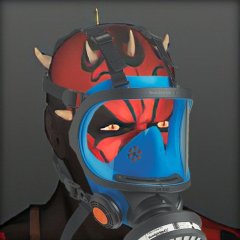
That's what I was saying above. No matter what, all the game ever does is render the headgear model and position it relative to the head model's goggle hook. The game doesn't have any full-enclosure headgear because of the variety of hairstyles and the high rate of clipping.
-
If you're doing a complete remodel like you are, it's safe to say you don't really need to worry about keeping the original texture intact. And the game just renders the helmet somewhere near the GoggleHook in the head models; it doesn't make any effort as far as clipping, so if it clips, it clips. That's why most headgear aren't full-head helmets and instead are masks.
-
The games suck as far as commandline switches (I don't think it actually supports any...). To activate Windowed mode, add the following under the Graphics Options: AllowWindowedMode=1
-
... I honestly completely spaced this after setting aside time to do it. I'll PM you tomorrow.
-
Okay, make sure your include file is in the Override folder.
-
 For those that aren't aware, the installer's fixed and I haven't gotten any reports of any more issues so far.
 -
 Just downloaded myself, extracted with 7-zip, ran the installer, and everything worked fine.
 -
Re-run the installer and direct it to your TSLRCM workshop folder.
-
In the case of include files, they can't have a void main() or an int StartingConditional() because those make them action or condition scripts, instead of include libraries. Include libraries are just raw .nss files that are "included" into the data before the script is compiled into a .ncs file.
-
I'm flexible. It's 9AM here.
-
Skype ( it's "fairstrides2") in about eight hours.
-
If you wanted, I could perhaps just edit the random loot stuff to add the new lightsabers or crystals to any random loot after Taris. If I were to do this and modify the installer to add the new scripts, you could perhaps just release as an update (which would avoid any possible permission issues).
-
Malkior is a devilishly-cruel human being for preying on my ability to generate solutions.

-
 *sigh* This is always sad news when people say single-player is a dead art form. Never mind the fact that there wouldn't be multiplayer if we didn't have single player first. I still firmly believe that Single-player is a vital part of a game. I like how the guy who played Finn in Ep 7 said on Twitter "So... Disney/EA. When is the Single-player campaign coming out for Battlefront?" And maybe one of the small development groups will become a AAA studio? What does that even mean? "a AAA studio"? Where's the criteria?
 -
I'm mainly advising my method over the .are + containers because the guy is trying to trigger something for an item that is generated by random loot. And I was advising against editing the .utp files from the templates.bif because I know that the generic names makes it a possibility that they have custom .utp files in some of the modules. And I have no idea what could have been changed to make them require such a copy of the file.
-
Quick! Someone go watch Ep V and grab Yoda on Luke's back for comparison: https://twitter.com/HamillHimself/status/719239858087182336?cn=ZmxleGlibGVfcmVjc18y&refsrc=email
-
http://i.imgur.com/rnPhEkL.jpg
I don't think Yoda ever points like that. At best his little puppet hand might come off Luke's shoulder unintentionally.
-
-
At the expense of similar flak, I will agree with this entirely. I don't mind women, and actually like them being protagonists, but I would like to see more diversity in personality. Seems to me they're always cast as individuals having to fight to prove themselves. For once, why can't we just get a self-confident young women who rises to the occasion to do great things; you don't have to be a rebel or being looking for a fight to be a strong female lead.
-
Not sure if you played through the Leviathan with K1R or not, but the three animated cameras K1R uses there took me several hours to do... Last tip for you: a Pitch of 90 = straight ahead, 0 = straight at the ground, 180 = straight up. Anything more than that and you could get interesting and amusing results...
-
With the current tools (I hope to remedy this eventually...), it can be time-consuming, depending on how complex you want the camera to be. In the Modding Tools section of starwarsknights.com, you will find a program called AniCam. This is used to make animated cameras, which can only be used in dialogs. You will also need the DLG Editor by tk102 from the same place, as this will let you edit or create dialogs. For the record, I recommend reading AniCam's read-me all the way through. I also recommend downloading the Utility Armbands mod from this link, as it will give you the needed angle and position for certain things. A lot of this you will be doing in first-person to make sure you're facing the right way before using the orientation armband. You basically need to go in-game, find your starting position, orient yourself to face the right way with first-person view, and then use the Orientation Armband. The feedback will be on the secondary window in the Messages menu (the feedback log). With this information (the XYZ coordinates and the Angle), you can start your first timed entry in AniCam. You'll enter that info into the first row and then tell AniCam to add another entry (use the menubar at the top). AniCam will increment the time field by 0.5 seconds (if you add a new entry between two entries, AniCam will auto-set the time field to mid-way between the two entries) and you can say where you want the camera to be at that point. Things to note: 1. AniCam stats you off with CUT001W as the animation; this is perfectly fine, and animated cameras can have up to 99 animations. 2. You must give a Camera Shot Length (the total time of the animation; so needs to be done for each new CUT###W you make) and a Camera Name (part of the .mdl file's header, but also what AniCam will default the name of the .mdl and .mdx files to). 3. For the Orientation of the camera, the Heading column is the horizontal axis, the Pitch is the vertical axis, and the Roll is the left-right axis (left-right as in you tilting your head without moving it, for example). 4. In a DLG file in DLG Editor, click on the top entry (the black line) and put the name of the .mdl file (without the extension, of course) into the Camera Model field, then click on another entry in the DLG to register the change. 5. To make the animated camera play for a certain node/entry, set the Camera ID to -1 and the Camera Angle to 4. 6. To tell which animation to play, you need to set the Camera Animation to a number. This number is either 999 + the number of the animation (like Cut001W would be 1, so the number is 1000) or 1199.* 7. You do not have to animate a camera down to the nearest 0.1 second, or even the nearest 0.5 or 1.0. You can set the Camera Interpolation in AniCam to use the interpolation feature to smoothly estimate the differences between the entries of the animation. 8. I HIGHLY recommend saving two copies of your animated camera: .mdl for the one with interpolation (this will be the one you test and mod with) and -no_interpolation.mdl (this must be done with the Camera Interpolation set to none; this model will be the one you can import into AniCam whenever you need to make an edit to the animations). *: The reason for the two numbers is that the 1000 series of numbers will continue an already-playing animation, but the 1200 series is used to actually start the animation. Also, you can't skip around the animations like this; if you start an animation with 1200, you can't call 1001 to continue CUT002W. You would need to put 1201 in the DLG node that starts that animation. For this reason and to avoid making your cutscenes look weird, I will advise that every entry after the animation starts use the 1000 series of the animation you started to ensure that node is playing the animation and not stopping it prematurely.
-
Oh, that's probably just because these phrases are basically 0/1 boolean flags determining if the user-defined script is called in addition to the normal stuff.


