Leaderboard
Popular Content
Showing content with the highest reputation on 12/15/2025 in all areas
-
2 points
Version 1.0.0
16 downloads
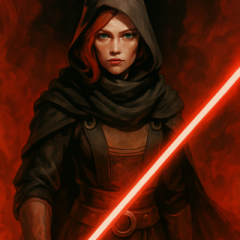
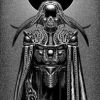
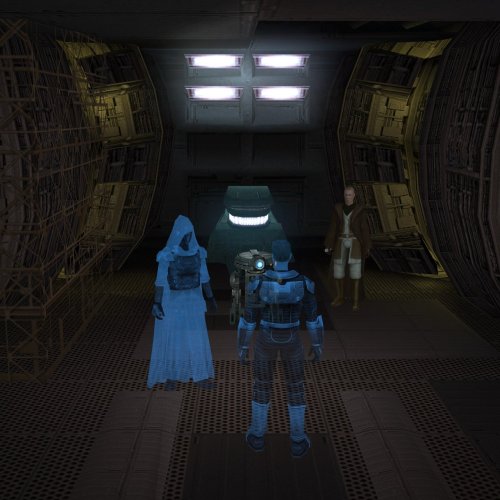
Changes the appearance of the Revan hologram in TSLRCM to reflect your dialogue choices at the beginning of the game. SUMMARY TSLRCM restores a cutscene featuring a hologram recording of Revan. The scene is slightly different depending on your dialogue choices at the start of the game. However, no matter what you choose, Revan still appears in their Sith Lord getup. With this mod, if you chose the LS option at the beginning of the game, Revan will now appear in masked Star Forge robes. This mod also adjusts the orientation of some of the characters to make the scene look a little more natural. TSLRCM is required to use this mod. INSTALLATION Make sure TSLRCM is installed. Run HoloPatcher.exe to install the mod. Unaltered copies of any modified files will be placed inside the "backup" folder in the location of HoloPatcher.exe. UNINSTALLATION Remove appearance.2da, a_t3_candrec.ncs, revanholo_light.utc, and jedirevanholo.tga from override. If any files were created inside the backup folder, move them to override. COMPATIBILITY Compatible with and dependent on TSLRCM. Should be compatible with any other mods as long they don’t modify the affected cutscene, specifically the script a_t3_candrec.ncs. PERMISSIONS Feel free to use this mod however you want as long as the credits listed below are included. CREDITS offthegridmorty L0ki194 - base for Star Forge Robes texture (Star Forge Robes Texture Enhancement) zbyl2, DarthStoney, Hassat Hunter, VarsityPuppet - TSLRCM and original a_t3_candrec script HoloPatcher - Cortisol, th3w1zard1 TSLPatcher - stoffe, Fair Strides KOTOR Tool - Fred Tetra K-GFF - tk102 -
2 points
Version 1.0.1
8 downloads
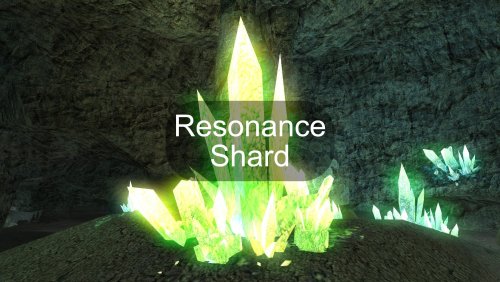
This mod introduces a unique item: the Resonance Shard, a slived fragment of the Exile's personal crystal. This shard can be discovered in the same crystal formation within the Dantooine Crystal Cave where the original crystal is found. The shard is designed to be used as an implant (requiring Wisdom 14+) by any organic companion. When equipped, it forges a powerful Force bond, allowing the chosen companion to join and share the existing Force Chain between the Exile and Kreia (when she is in the party). Once bonded, most beneficial Force powers used on the Exile, Kreia, or the chosen companion will automatically resonate through the connection, extending their positive influence to all others within the chain. Note: Due to how the game works, the shard will only appear if this is your first time entering the Crystal Cave. If you have already visited the cave, you can add the item with the following console command: giveitem e_imp1_axc01 Credits: Fred Tetra, for KOTOR Tool TK102, for DLGEditor Torlack, stoffe & TK102, for NWNSSCOMP JdNoa & Dashus, for DeNCS Cortisol, for Holocron Toolset -
1 point

Version 1.5
231,177 downloads
Bubbling up from the font of dark knowledge, ndix UR presents KotOR High Resolution Menus, a UI mod package providing full high resolution menu and UI support for Knights of the Old Republic. The tyrrany of 640x480 menus and 6-item lists is over. Normally, when you increase the game's resolution using a widescreen patcher like UniWS, the menus stay very small in the middle of the screen and the borders get larger. This package is designed to be used *after* the widescreen patcher has done its work. It scales the menu screens up so that they fill the screen. This package requires modification of the swkotor.exe file using a supplied patcher, and is only known to work with GoG, 4-CD, and macOS (x86) versions of the game. It should be compatible with any Steam version that uses UniWS. The main content of the package are sets of GUI files (.gui), scaled for specific resolutions. The package contains GUI files for over 30 common resolutions with the following aspect ratios: 4:3, 16:10, 16:9, 21:9, and 32:9. Here is a list of the currently supported resolutions: Installation Find the gui.WxH folder matching your resolution, modify your executable using the supplied patcher, copy the GUI files to your Override/ folder. The details for this process can be found in the package README.pdf file. Read it. Follow the instructions therein. The documentation includes everything you need to know to manually patch your EXE if the patcher does not work for your version. Uninstallation Remove the GUI files, restore the original backed up version of your swkotor.exe file. IMPORTANT NOTES: This is not a resolution hack or widescreen patch, such as you get from using UniWS. You should already be successfully running the game at the resolution you are trying to get menus and UI for. Nothing in this package will give you any additional resolutions available. That is not what this does. If you are trying to get high-res menus for one of the resolutions supported by default (800x600, 1024x768, etc.) there is probably no point to using the GUI files named 'mipc*' provided by this package (mostly the in-game "HUD"), however, this scenario is untested. There are a few of the GUI files in this package you can use without modifying your executable. Here is that 'safe' list, in case you are unable to modify your executable: It gets you the main menu, some dialogs, and the in-game HUD elements. Thanks DarthParametric for testing, contributing a double-clickable thing for Windows users, and prompting me to finally figure out the needed EXE modifications. tk102 for GFF2XML and XML2GFF source code, which made it a lot easier to get this up and running. Known Issues The patcher is currently incredibly limited, making no effort to search for values, only looking at specific locations where they are in the executables I have access to. This package does not contain any higher resolution artwork. At high resolutions, menu backgrounds will be blocky, and the striped list backgrounds are unlikely to line up with list items. For numerous reasons, you will want to get a high resolution menu art package. The game's initial character selection screen does not lay out the selectable characters properly according to GUI file field values. It is useable, but not perfect. The blue hilight borders had to be removed from around the characters to maintain a clean look. The map screen is scaled up, but the map itself is not. Furthermore, the position of the map within the frame is somewhat random/poorly understood. The map, however, is completely useable, and the points of interest and player indicator are all positioned accurately relative to the map. Some of the 3D models in menus, such as on the character stats or character generation screens, display line artifacts over them. This is caused by the very low quality graphics being scaled up to provide the border overlays. Extracting the graphics as TGAs, scaling them up, and placing them into Override/ sometimes solves these problems. This package omits statussummary.gui and dialog.gui. Scaling them up cause problems. The files don't behave as expected, and it seems to not require a customized version in order for them to work as one would want. You might notice 1280x1080 in 21:9 even though it is not 21:9. It is for split-screen on 21:9 monitors. Rescaling the dialog/cut-scene letterbox (which is optional) seems to introduce occasional issues with letterbox placement, particularly when the letterbox animation happens. This may be fixed at some point in the future. There is no scaling on font size, and as far as I know no one has figured out how to do it, so users on TV/couch setups may not find the help they are looking for with this. Upgrading 1.4 to 1.5: If your resolution was not previously supported, copy new .gui files to your Override/ Upgrading 1.3 to 1.4: If you have Polish version, you can run EXE patching process If you have 32:9 display, copy new .gui files to your Override/ Upgrading 1.2 to 1.3: Copy all the .gui files to your Override/ Upgrading 1.1 to 1.2: Repeat the EXE patching process on a backup EXE if you want letterbox scaling Upgrading 1.0 to 1.1: Remove dialog.gui from your Override/ Copy 1.1 pazaakgame.gui to your Override/ -
1 point
-
1 pointHello. I request permission to publish textures using elements from your mod. Example:
-
1 point@Salk This ended up being super quick and easy: