



Compact
-
Posts
2 -
Joined
-
Last visited
Content Type
Profiles
Forums
Blogs
Forum & Tracker Requests
Downloads
Gallery
Store
Events
Everything posted by Compact
-
View File Modern Display Restoration Work in Progress - please give feedback. Added experimental ACM profiles, but support for it will be limited(you can't support random). https://ibb.co/album/hRPfSF - you can check if you have ACM enabled. If you have ACM enabled, the screenshots in this link should look correctly(only some of them. The plot twist is - which ones will?), while most screenshots on Nexus won't look correct. If the screenshots on Nexus look better - you have ACM disabled. ACM can't be predicted unfortunately, so there is little I can do. This mod, which uses ReShade aims to restore original look of the game on modern PCs and modern displays. There were a lot of changes in the computer world during the last decades - different displays(CRT screens), different displaying standards, different Operating Systems with different layers of processing and their redesigns, different GPU drivers and different versions of 3D graphics APIs. This aims to hopefully compensate all of that and restore the true look of the game to a modern player. This does not try to alter the games look in any other way than restoring the original intent, which you would have playing the game in those times on the console version of the game. For best results, disable Automatic Color Managment if you use WIndows 11. You can disable it per game or globally. Mod might not be compatible with Linux using Proton or similar. https://www.elevenforum.com/t/enable-or-disable-auto-color-management-for-apps-in-windows-11.11292/ Installation instructions(follow the order) Download ReShade from https://reshade.me/downloads/ReShade_Setup_6.7.3_Addon.exe. Mind you, this is a version for games without anti cheat only, if you would like to use it with a different game. Download(recommended) DisplayCommander addon from https://github.com/pmnoxx/display-commander/releases/download/latest/zzz_display_commander.addon32 Place all of the files to the game directory, including the provided mod files to where the exe file is. Move the folders from the mod as is. Run the ReShade installer. Find the game path, then select swkotor2.exe Select OpenGL. In the next windows, press Skip, unless you want to try some shaders or addons for yourself later. Some are already present in the package. Select a preset from the presets folder. Move all the files from the respective folder to the same location as every other file: If you don't know which to pick, try High Brightness gamma 2.2 preset or try the High Contrast equivalent. If you have an OLED or MiniLED with local dimming, pick High Contrast preset matching your display. If you have a 10 bit display and you are not using a so called sRGB gamut clamp, pick Wide Gamut presets and match it to your display gamma setting and monitor type. If you run lower brightness(80-120 nits), pick clean Gamma 2.2 preset or match it to your display gamma setting. NOTE: There is a bug with the bloom shader, so there is overly bloomy screen when starting the game. It's not present later. Requirements Reshade(6.7.3) https://reshade.me/downloads/ReShade_Setup_6.7.3_Addon.exe Credits Crosire and all contributors for creating Reshade https://reshade.me https://github.com/crosire/reshade And to the creators and all the contributors of the used shaders: https://github.com/EndlesslyFlowering/ReShade_HDR_shaders https://github.com/prod80/prod80-ReShade-Repository https://github.com/Matsilagi/RSRetroArch/ https://github.com/crabshank/HLSL-Reshade-colour-remappers Submitter Compact Submitted 11/13/2026 Category Mods TSLRCM Compatible Yes
-
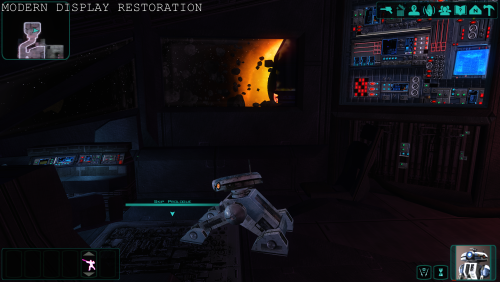
Version 1.2.0
0 downloads
Work in Progress - please give feedback. Added experimental ACM profiles, but support for it will be limited(you can't support random). https://ibb.co/album/hRPfSF - you can check if you have ACM enabled. If you have ACM enabled, the screenshots in this link should look correctly(only some of them. The plot twist is - which ones will?), while most screenshots on Nexus won't look correct. If the screenshots on Nexus look better - you have ACM disabled. ACM can't be predicted unfortunately, so there is little I can do. This mod, which uses ReShade aims to restore original look of the game on modern PCs and modern displays. There were a lot of changes in the computer world during the last decades - different displays(CRT screens), different displaying standards, different Operating Systems with different layers of processing and their redesigns, different GPU drivers and different versions of 3D graphics APIs. This aims to hopefully compensate all of that and restore the true look of the game to a modern player. This does not try to alter the games look in any other way than restoring the original intent, which you would have playing the game in those times on the console version of the game. For best results, disable Automatic Color Managment if you use WIndows 11. You can disable it per game or globally. Mod might not be compatible with Linux using Proton or similar. https://www.elevenforum.com/t/enable-or-disable-auto-color-management-for-apps-in-windows-11.11292/ Installation instructions(follow the order) Download ReShade from https://reshade.me/downloads/ReShade_Setup_6.7.3_Addon.exe. Mind you, this is a version for games without anti cheat only, if you would like to use it with a different game. Download(recommended) DisplayCommander addon from https://github.com/pmnoxx/display-commander/releases/download/latest/zzz_display_commander.addon32 Place all of the files to the game directory, including the provided mod files to where the exe file is. Move the folders from the mod as is. Run the ReShade installer. Find the game path, then select swkotor2.exe Select OpenGL. In the next windows, press Skip, unless you want to try some shaders or addons for yourself later. Some are already present in the package. Select a preset from the presets folder. Move all the files from the respective folder to the same location as every other file: If you don't know which to pick, try High Brightness gamma 2.2 preset or try the High Contrast equivalent. If you have an OLED or MiniLED with local dimming, pick High Contrast preset matching your display. If you have a 10 bit display and you are not using a so called sRGB gamut clamp, pick Wide Gamut presets and match it to your display gamma setting and monitor type. If you run lower brightness(80-120 nits), pick clean Gamma 2.2 preset or match it to your display gamma setting. NOTE: There is a bug with the bloom shader, so there is overly bloomy screen when starting the game. It's not present later. Requirements Reshade(6.7.3) https://reshade.me/downloads/ReShade_Setup_6.7.3_Addon.exe Credits Crosire and all contributors for creating Reshade https://reshade.me https://github.com/crosire/reshade And to the creators and all the contributors of the used shaders: https://github.com/EndlesslyFlowering/ReShade_HDR_shaders https://github.com/prod80/prod80-ReShade-Repository https://github.com/Matsilagi/RSRetroArch/ https://github.com/crabshank/HLSL-Reshade-colour-remappers