Jump to content

Search the Community

Showing results for tags 'tips'.

  • Search By Tags

    Type tags separated by commas.
  • Search By Author

Content Type


Forums

  • Kotor Modding
    • Mod Releases
    • General Kotor/TSL Modding
    • Modding Tools
    • Work In Progress
    • Tutorials
    • Game Saves
  • Mod Projects
    • TSLRCM
    • M4-78 Enhancement Project
    • KotOR1 Restoration (K1R)
    • Revenge of Revan
    • KotOR Toolset
  • Jedi Knight Series
    • General Discussion
    • Mod Releases
  • Other Games
    • Other Games
    • Dantooine Theater Company
  • General
    • News
    • Knights of the Old Republic General
    • Star Wars
    • The Old Republic
    • Site Feedback
    • General Discussion

Blogs

  • Blog 1
  • The memories of Mandalore
  • Blog 63
  • Varsity Puppet's Brain Dump
  • Working Class Hero's Blog
  • mmidnight's Blog
  • Blog-Tastika
  • Darth Malious' Blog
  • The Beta Community's Voice
  • sallyrit's Blog
  • Sith Holocron's Blog
  • Diablo3gold
  • Marginalia
  • Mindwizard's Blog
  • Journal Log Of Penally's Bounties
  • Mudslinger077's Blog
  • starwars1234's Blog
  • Blaaargh.2da
  • Kate The Bionic Uterus' Vibrating Submarine
  • Darth Nuge's Blog
  • The Xuul Report
  • KOTOR Fan Theories
  • Benny Chan style
  • Darth_Sapiens' Blog
  • Neville's Blog
  • Darth_Sapiens' Blog
  • TimmyDean's Blog
  • Malkior's Blog
  • DarthSidious4.2's Blog
  • Darth Pravus' Blog
  • Help
  • Canderis' Blog
  • The Musings of Eauxps
  • xander2077's Blog
  • DeadMan's chest
  • pepoluan Far Far Away
  • Rece's Videos
  • jc2's Journal
  • Kexikus' Blog
  • Kreia's Blog
  • Fair Strides' Blog
  • Pazuzu156's Blog
  • GoldLeader's Blog
  • Steira Shipyards
  • lyuscherbakova1986's Blog
  • superSzym's Blog
  • Leilukin's Blog
  • N-DReW's Datapad
  • magdahalo's Blog
  • Trouble Successfully Using Kotor II TSLRCM 1.8.5 On Windows 7 x64-Bit Laptop
  • DarthTyren's Blog
  • The Holocron of Darth Kyber
  • Darth Varkor's KOTOR Machinima Saga: Production Blog
  • ADG12311990's Blog
  • Unusual's VA Blog
  • Draconian's TSL mod request.
  • darthbdaman's Holocron
  • JC's Blog
  • L0ki's Blog of questions & brief WIP things
  • The Iriaz Archives
  • Breakfast With eb
  • Cathar Handmaiden Skin?
  • Kast's Datapad
  • Having fun with the KotOR maps.
  • AndroidKotOR Modded
  • Starıka's Jedi Academy Machinimas
  • KotOR II Damage Calculator
  • Help Modding
  • A step-by-step guide for widescreen in Star Wars: Knights of the Old Republic
  • 13 gigabytes, 13 brain cells
  • Modding Tools
  • StellarExile Mod Stuff
  • Jedi Knight: Jedi Academy films by Cor
  • Something of a moment of truth
  • Music for Streams
  • LoneWanderer's blog
  • modder 9's blog
  • Community Requests
  • Kotor combined saga blog
  • My Kotor Machinimas
  • How do you stream with your Widescreen fixes?
  • Looking for advice to solve a challenging bug: Eastern Dune Sea is resetting every time upon entering

Categories

  • Knights of The Old Republic
    • Media
    • Mods
    • Skins
    • Modder's Resources
  • The Sith Lords
    • Media
    • Mods
    • Skins
    • Modder's Resources
  • Jedi Knight Series
    • Maps
    • Mods
    • Skins
    • Other
  • Game Saves
  • Other Games
  • Modding Tools

Product Groups

  • Premium Membership
  • Modders Account

Find results in...

Find results that contain...


Date Created

  • Start

    End


Last Updated

  • Start

    End


Filter by number of...

Joined

  • Start

    End


Group


AIM


MSN


Website URL


ICQ


Yahoo


Jabber


Skype


Location


Interests

Found 1 result

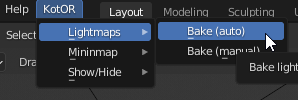
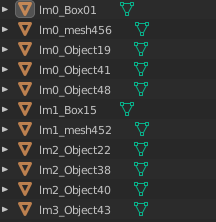
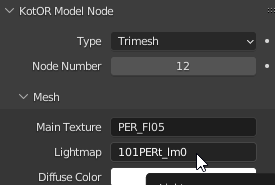
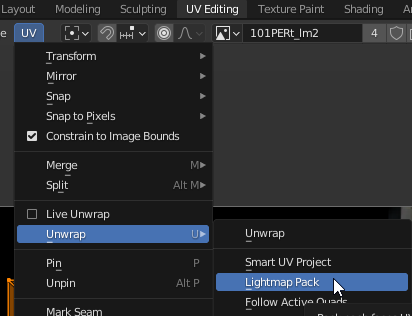
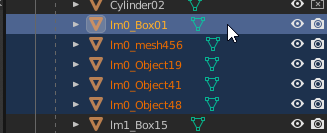
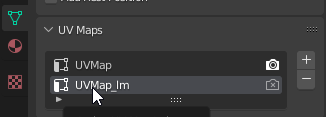
  1. You will need the KOTOR Blender plugin. I used the 3.3 LTS version of blender but it looks like it has now been updated to newer versions. I still recommend using a LTS version. First you need to switch to the lightmap UV. If you don't, the lightmap will be baked on top of the diffuse texture. You can find this under UV Maps in each meshes Object Data Properties. Select each mesh and click UVMap_lm. Yes, it is tedious but it's required. To bake the lightmaps with the plugin, click the KotOR menu -> Lightmaps -> Bake(Auto). You should click an empty space, first, to make sure no meshes are selected. If meshes are selected it will only bake for what is selected. At this point you may notice the lighting looks bad. The UVs need to be unwrapped and some lightmaps will need to be resized to a higher resolution. This is optional but it helps me keep it organized. Look through the list of meshes and see which ones have lightmaps. I then rename the meshes to start with the lightmap name (lm0_Object19,lm1_Box01, lm9_mesh456,...). When unwrapping the UVs this makes it easy to select all meshes that share a lightmap, which you may be doing multiple times. There's 3 ways to unwrap the lightmap UVs. Each has different advantages and disadvantages. The best to use will depend on each group of meshes, sharing a lightmap. 1) Lightmap Pack (Most efficient) - This one will work for most but sometimes the triangles of a face get separated, creating an ugly seam. 2) Unwrap (Medium efficient) - Keeps the basic shape of faces the same bust doesn't pack as efficiently. This one requires you to select all(a key) UVs first or nothing happens. 3) Smart UV Project (Least efficient) - This one maintains the shape of faces perfectly but each UV takes up a lot of space. May require you to increase the lightmap resolution really high to look good (1024x1024 or more). While in the layout workspace, select all meshes that share a lightmap. Then switch to the UV Editing workspace. All meshes need to be selected in the 3D view, for the UVs to show in the UV editor. Then select one of the unwrap types in UV -> Unwrap. Remember, if doing regular unwrap, selecting all UVs is first required. Now, go back to the Layout workspace and bake the lightmaps. Some lightmaps may have weird artifacts or look low res. You can compensate for that by resizing the lightmap texture. Go to the UV Editing workspace and select the lightmap to edit. Then Image -> Resize. I try not to resize higher than 512x512 and I keep less detailed meshes between 16 and 128. The larger the texture size, the more memory it takes in game and the longer it takes to bake. Then go back to Layout workspace and bake again. To save the lightmap texture, go to UV Editing layout then Image -> Save As. You will need to do this for each lightmap once and make sure you choose TGA when saving. After, you can use Save All Images. I haven't even touched on lighting but here's a few tips: - Under World Properties, the surface color will affect your lighting a lot. I prefer to just remove the surface(or make it darker) and it gives me more control over the lighting. - Point lights fill the room with a lot of ambient light. If you want more control over the shadows use spot lights. - The game engine will add even more lighting on top of the scene. You can control this in the light's Object Properties -> KotOR Model Node -> Light
×
×
  • Create New...

Important Information

By using this site, you agree to our Guidelines.